- To set up dual control log in to Business Online Banking as a System Administrator.
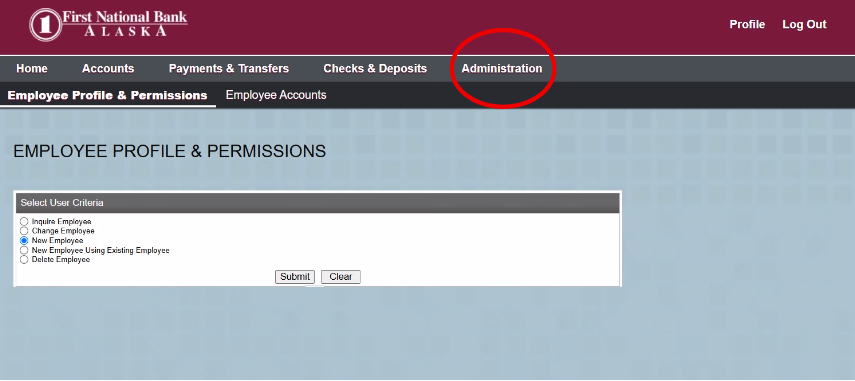
- Go to the Administration tab.
- Select New Employee.
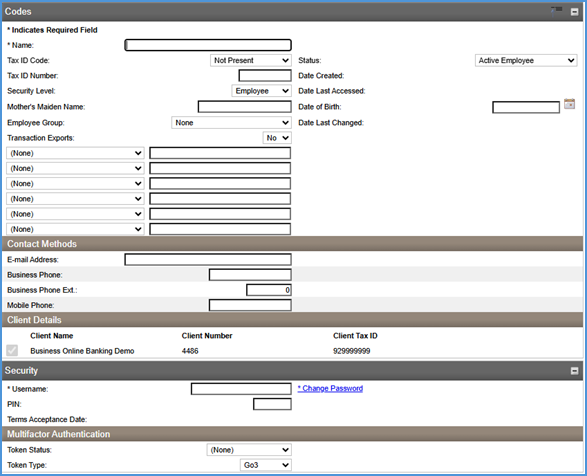
- Fill in the requested information: Name, security level, email address, business and mobile phone numbers, username, and temporary password in the Change Password link.
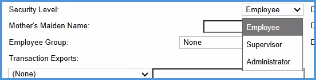
- Select the security level you want to grant the new user.
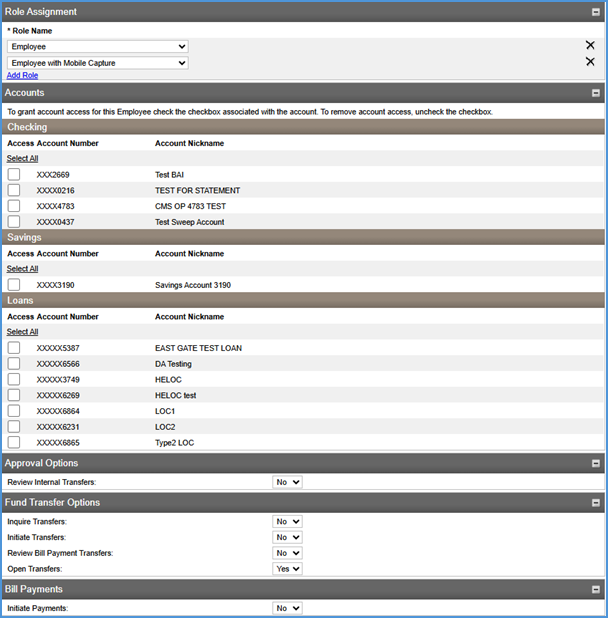
- Create a password for the new user. If applicable, select any accounts that the user will need access to in Online Banking.
- If you are currently using a token to log in to Business Online Banking, select the following in the Multifactor Authentication section (if you are not currently using a token to log in, skip this step):
- Token status: Pending enablement
- Token type: Go3

- Once you’ve finished filling out the information, scroll to the bottom of the page and click next.
- You should see a message saying “Employee Created Successfully.”
- Once you’ve created a new user, go into ONEpay.
- Once in ONEpay, click Administration.
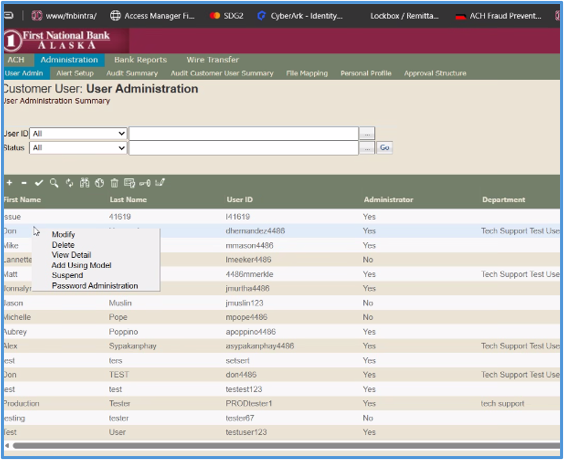
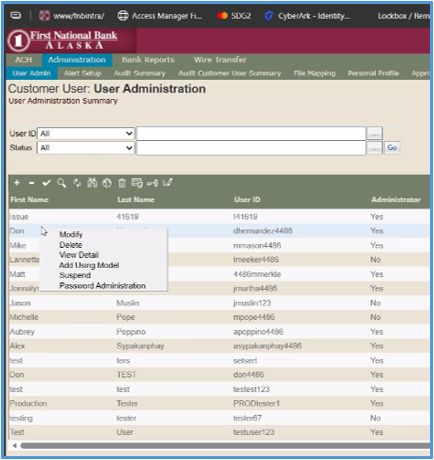
- If you have an existing employee in the system with the permissions you’d like your new user to have, select the existing employee, then right click and select “Add Using Model.” If you need to set up the new user from scratch, click the + sign on the green bar.
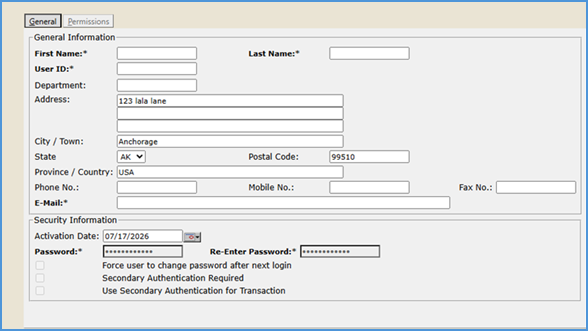
- Enter their first name, last name, email address and user ID.
- Click permissions and assign which account you’d like the new user to have ACH and/or wire access. Check the boxes with appropriate level of access for the new user.
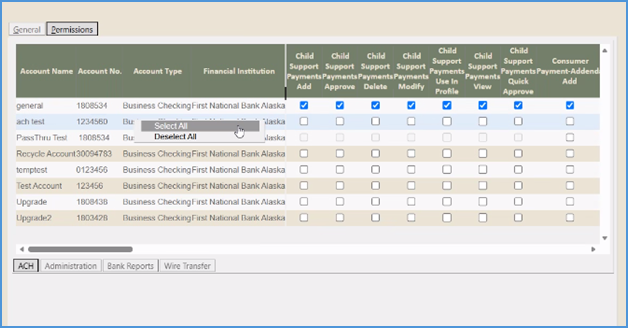
- Add the payment type permissions you would like the user to have.
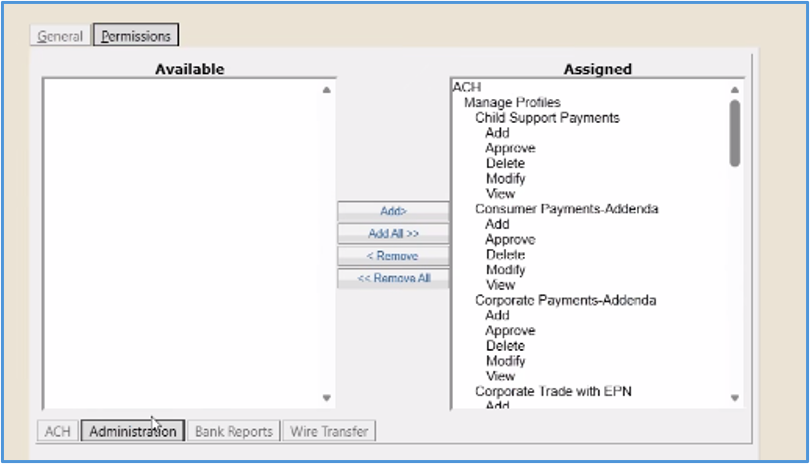
- If the user should have access to Bank Reports, select all for account number and company ID.
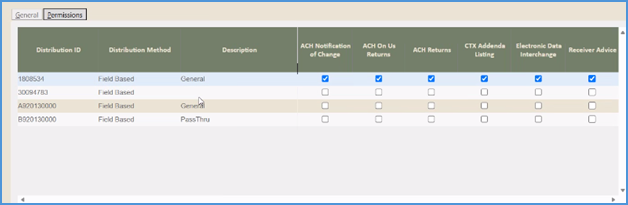
- If you’re a wire customer, repeat the same steps in the wire transfer tab.
- Click save.
- One you have created your additional users, the System Administrator must call First National’s Fulfillment and Support at 907-777-3640 and ask them to link the new Business Online Banking user to their ONEpay profile. At this time, if the system administrator does not have an extra hard token to give to their new user, First National can provide one.
- Once the new user’s profiles have been linked and they have a hard token, they can log into their business online banking account. They will be prompted to register their hard token by clicking the Go To ONEpay link.
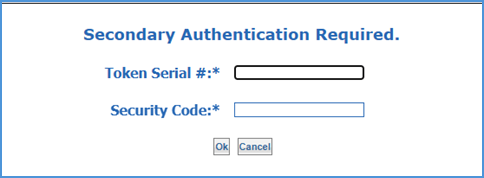
- Your second user is set up and ready to go!