Zelle® is a fast, safe and convenient way to send money directly between bank accounts in the U.S., typically within minutes. You should only use Zelle® with people you know and trust. Zelle® offers the following features:
- Split a Bill
- Send Money
- Request Money
Send
- Log in to online banking. Enter User ID and Password, then select the Log In button.
- Select the Zelle® menu. The Zelle® view will display.

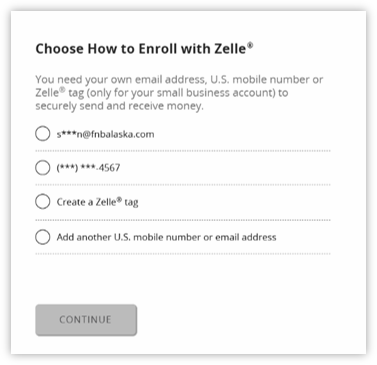
- Businesses will need to select an email address or a U.S. phone number to enroll in Zelle®,
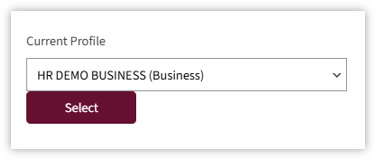
- Once enrolled, businesses with linked profiles are given the dropdown selection to identify which business they are sending money on behalf of.
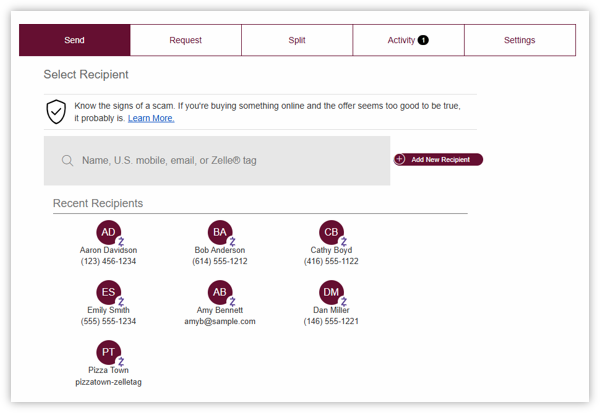
- Select the Send tab to send payments. Select a recipient or search for one. The recipient will receive the notice of deposit, which will be sent to either a mobile phone number or email address.
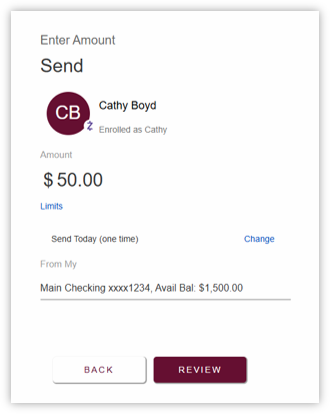
- Input the amount of money you wish to send. Then, click Review.

NOTE: Prior to submitting the transfer, users can change the funding account, adjust the payment amount and update the payment frequency to meet their needs.
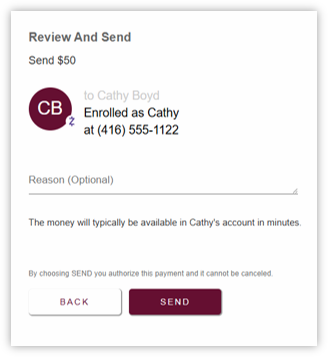
- Review the payment details and add a message on the Reason (Optional) field, if needed. Click Send to complete the payment.
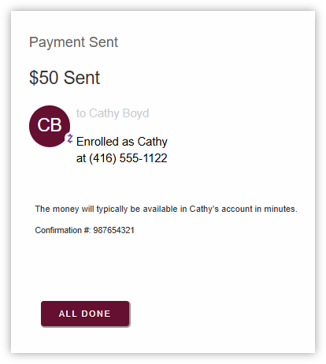
- A confirmation that the payment is sent is displayed.
Requesting Payment
To request money with Zelle®:
- Select the Request Tab to request payments. Select a recipient or search for one. The recipient will receive the notice of withdrawal, which will be sent to either a mobile phone number or email address.
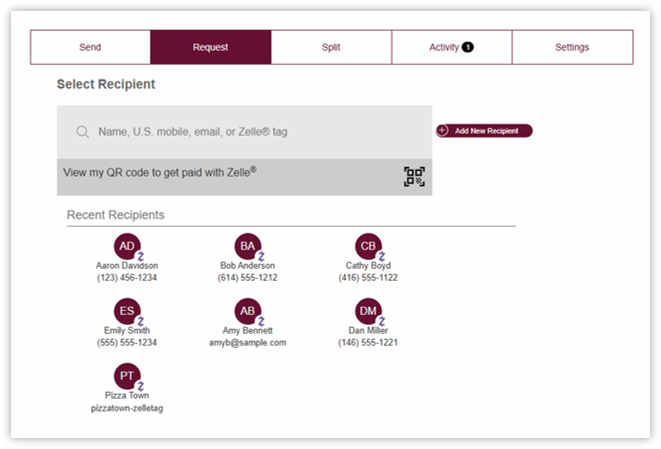
- Input the amount of money you wishs to request. Then, click Review.
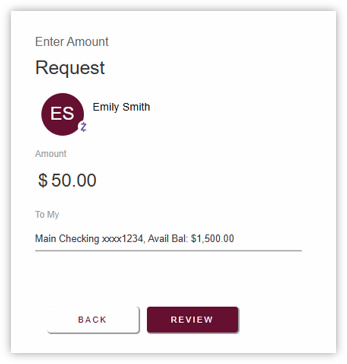
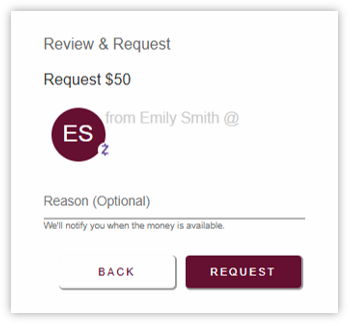
- Review the payment detail and add a message on the Reason (Optional) field, if needed. Click Request to complete the payment.
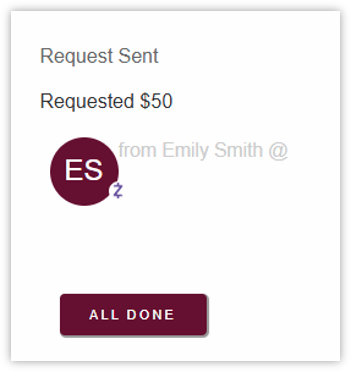
- A confirmation that the payment is sent is displayed.
Note: If the recipient is already enrolled with Zelle®, the payment is typically delivered automatically. If they are not enrolled, they will receive a text message or email with instructions to enroll and accept the payment. Once enrolled, the funds will be deposited into their selected account.
Split a Bill
To request money with Zelle®:
- Click on the Split Tab at the top. Select the individuals to request payment from. The individual will receive a notice of the split payment request.
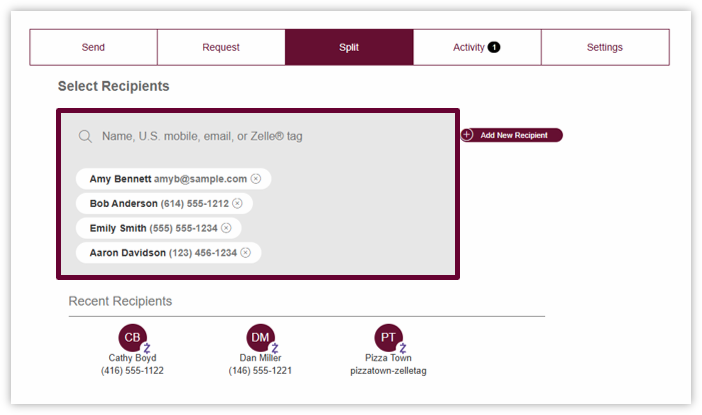
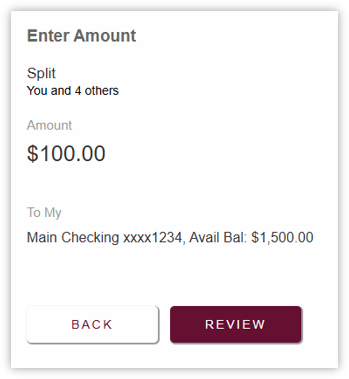
- Next, enter the amount to request from each individual by clicking on Enter Amount
- Enter the total bill amount. Then click Review.
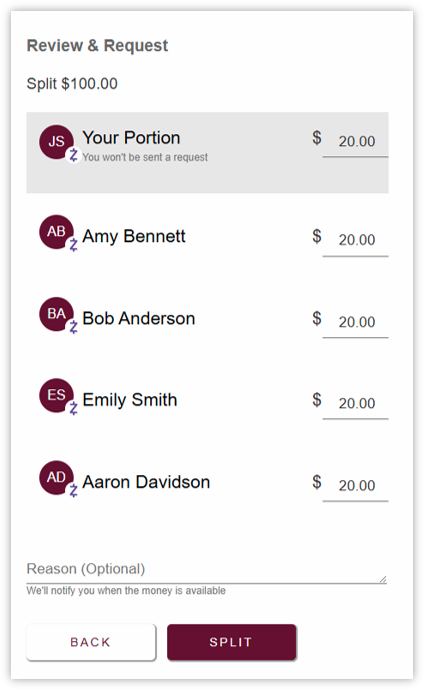
- The Review & Request screen will display. Edit each payment as needed.
Add a message on the Reason (Optional) field, if needed.
Click Split to send the request.
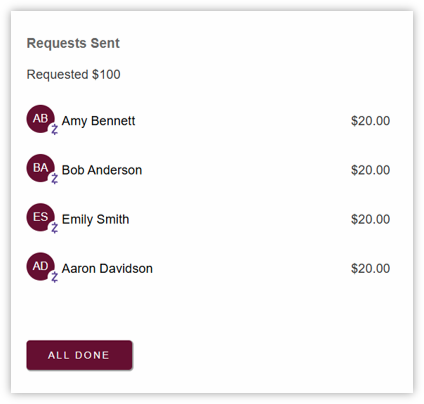
- The Request Sent view will display showing that the split payment request has been sent.
Click All Done.
Zelle® Activity
The Activity page displays your Zelle® payment history, including payments that have been sent, received, are pending or have been cancelled.
Instructions:
- Select Activity from the Zelle® menu
- Review the list of recent Zelle® transactions
- Select a transaction to view additional details, such as:
- Recipient or sender
- Payment amount
- Date and time
- Payment status
- Memo (if provided)
- If a payment is pending, review the status to determine whether the recipient has enrolled with Zelle®
- Return to the Activity list when finished.
Note: Payments sent to recipients who have not enrolled with Zelle® will remain pending until the recipient completes enrollment or the payment expires.
Zelle® Settings
The Settings page allows you to manage the contact information and accounts associated with your Zelle® profile.
Instructions
- Select Settings from the Zelle® menu.
- Review the registered email address(es) and mobile phone number(s).
- Add or remove an email address or mobile number, if needed.
- Select the deposit account associated with each enrolled contact method.
- Save any changes before exiting the page.
NOTE: Each email address and mobile phone number can only be enrolled with one financial institution at a time.

TIP: Verify that the selected deposit account is the account where incoming Zelle® payments should be received.