-
How do I get a hard token for my second user?
An authorized account signer or Online System Administrator should contact the bank’s Fulfillment and Support team, their Treasury Management representative, or visit their local branch. Customers requesting hard tokens should be advised of longer-than-normal shipping times due to shipping an item with a battery, so it may be more efficient for a customer to pick up at a branch.
-
If my business doesn’t implement dual control, can I still send a wire transfer in the branch?
Yes. Wire transfers in branches are a separate process that will not be affected by the digital banking upgrade.
-
Can I keep initiating and approving transactions by myself?
If dual control does not align with your business’s operational needs, you may opt out by completing and submitting the bank’s required documentation. However, using dual control is a recommended best practice to prevent costly fraud losses.
As part of that process, you will be required to acknowledge that dual control has been offered and recommended by the bank, select the alternative security procedures that will apply to your transactions, and acknowledge and accept the risks and responsibilities associated with declining or failing to use dual control, as provided in the bank’s Business Online and Treasury Management Services Agreement and Disclosures and related documentation.
-
My business doesn’t have any employees. How can I set up dual control?
Dual control requires a second authorized user in ONEpay, but that second user does not have to be your employee. You can add any trusted person to implement dual control.
-
How do I set up dual control?
- To set up dual control log in to Business Online Banking as a System Administrator.
- Go to the Administration tab.
- Select New Employee.
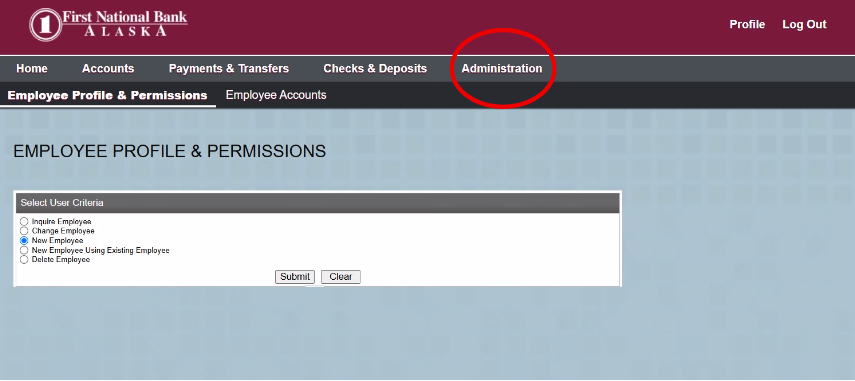
- Fill in the requested information: Name, security level, email address, business and mobile phone numbers, username, and temporary password in the Change Password link.
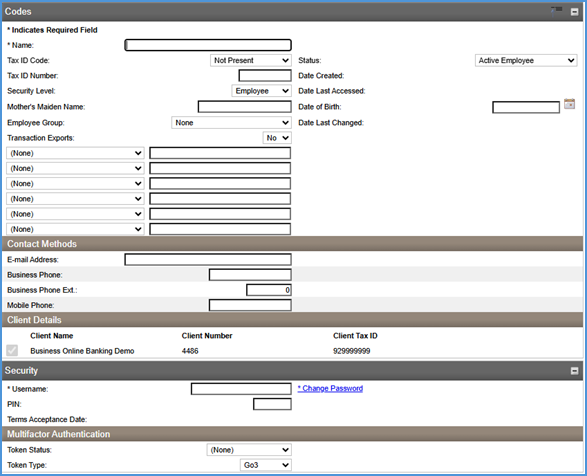
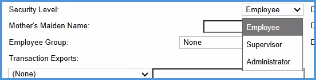
- Select the security level you want to grant the new user.
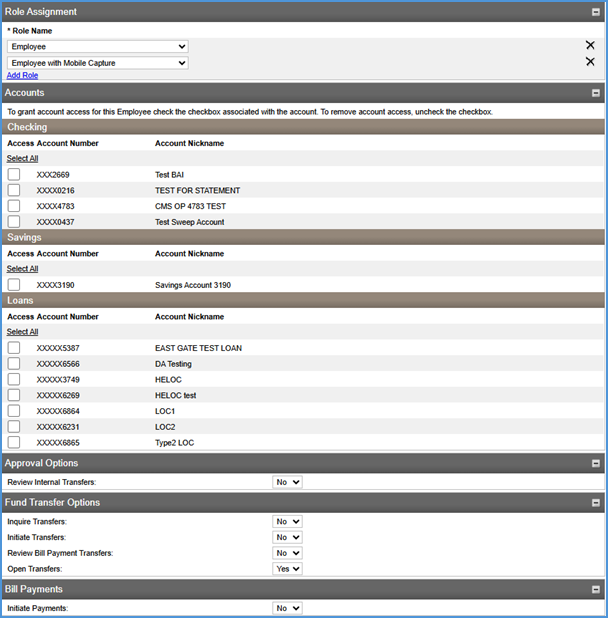
- Create a password for the new user. If applicable, select any accounts that the user will need access to in Online Banking.
- If you are currently using a token to log in to Business Online Banking, select the following in the Multifactor Authentication section (if you are not currently using a token to log in, skip this step):
- Token status: Pending enablement
- Token type: Go3

- Once you’ve finished filling out the information, scroll to the bottom of the page and click next.
- You should see a message saying “Employee Created Successfully.”
- Once you’ve created a new user, go into ONEpay.
- Once in ONEpay, click Administration.
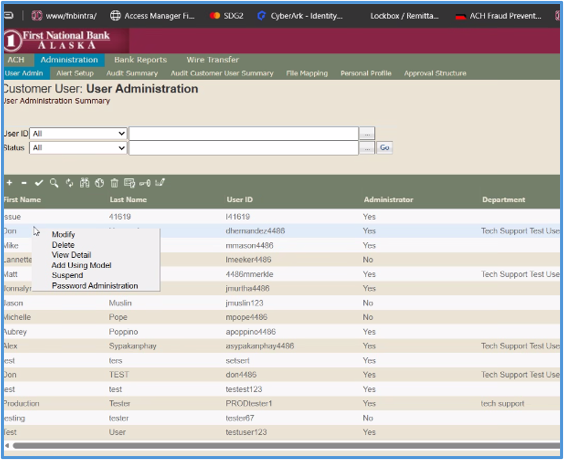
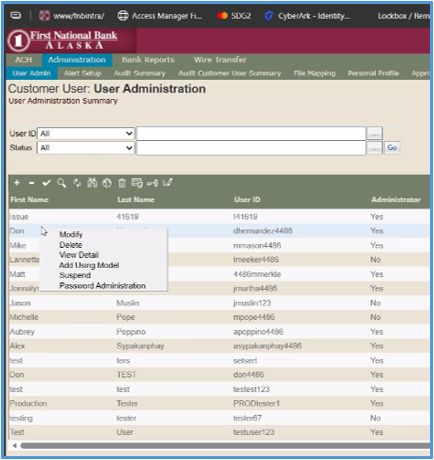
- If you have an existing employee in the system with the permissions you’d like your new user to have, select the existing employee, then right click and select “Add Using Model.” If you need to set up the new user from scratch, click the + sign on the green bar.
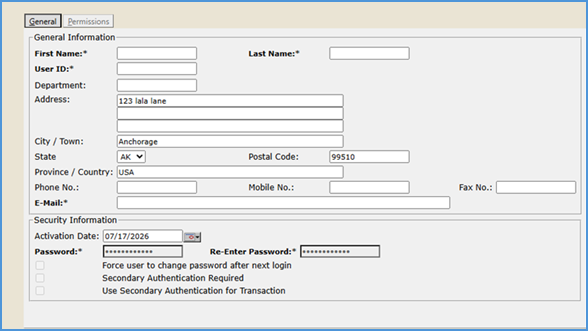
- Enter their first name, last name, email address and user ID.
- Click permissions and assign which account you’d like the new user to have ACH and/or wire access. Check the boxes with appropriate level of access for the new user.
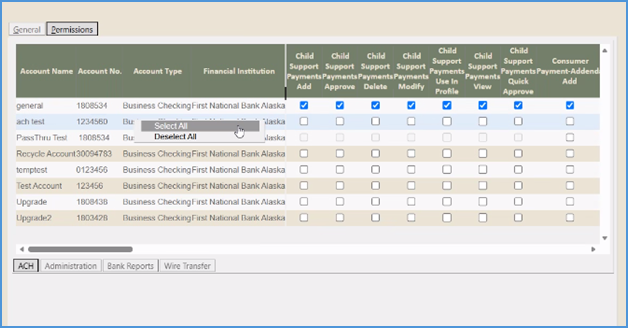
- Add the payment type permissions you would like the user to have.
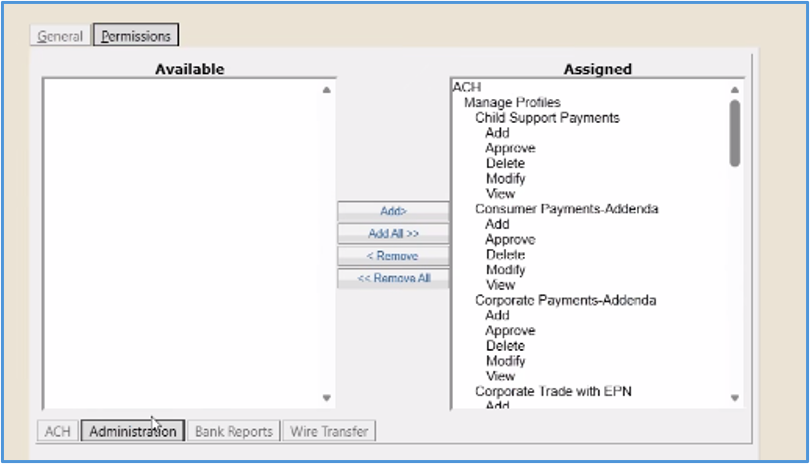
- If the user should have access to Bank Reports, select all for account number and company ID.
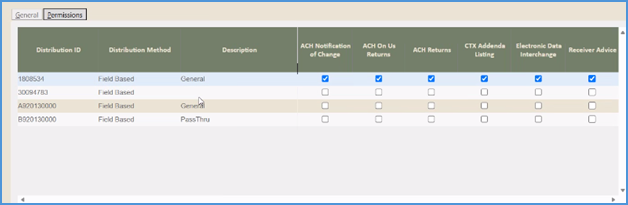
- If you’re a wire customer, repeat the same steps in the wire transfer tab.
- Click save.
- One you have created your additional users, the System Administrator must call First National’s Fulfillment and Support at 907-777-3640 and ask them to link the new Business Online Banking user to their ONEpay profile. At this time, if the system administrator does not have an extra hard token to give to their new user, First National can provide one.
- Once the new user’s profiles have been linked and they have a hard token, they can log into their business online banking account. They will be prompted to register their hard token by clicking the Go To ONEpay link.
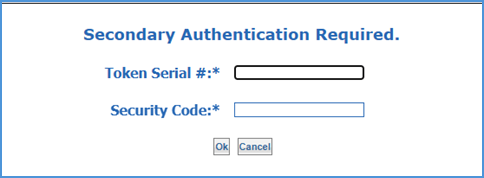
- Your second user is set up and ready to go!
-
My business currently has one person that both initiates and approves ACH and Wire transactions. Can we just keep doing that?
Yes. However, First National highly recommends all businesses customers use dual control in their ACH and wires process to protect your finances from fraud.
If dual control does not align with your business’s operational needs, you may opt out by completing and submitting the bank’s required documentation. As part of that process, you will be required to acknowledge that dual control has been offered and recommended by the bank, select the alternative security procedures that will apply to your transactions, and acknowledge and accept the risks and responsibilities associated with declining or failing to use dual control, as provided in thebank’s Business Online and Treasury Management Services Agreement and Disclosures and related documentation.
-
Should I implement dual control if I run a small business?
Yes, businesses of all sizes can benefit from using dual control.
-
What are the benefits of dual control?
- Enhanced Security: Dual control significantly reduces the risk of unauthorized transfers and fraudulent activity by requiring two sets of eyes on every transaction.
- Error Reduction: By having two people review each payment, the likelihood of mistakes, such as incorrect amounts or recipient information, is greatly minimized.
- Accountability: Dual control creates a documented trail of who approved each transaction, supporting internal organizational transparency and audit requirements.
-
What is dual control?
Dual control ensures that a second, independent user must confirm and release the transaction before it is transmitted to the recipient. No single user may both initiate and approve an ACH or wire. This ensures two individuals review every transaction.
-
Is my information secure?
Keeping your money and information secure is one of our top priorities. When you use Zelle® within our mobile app or online banking, your information is protected with the same technology we use to keep your bank account secure.
-
I believe I have been a victim of a scam. Whom should I contact?
Please contact our customer support team at 907-777-4362 or 800-856-4362. Qualifying imposter scams may be eligible for reimbursement.
-
How do I use a Zelle® QR code with my business account?
Zelle® QR codes provide peace of mind, knowing you can send and receive money without typing or providing an email address or U.S. mobile number. To locate your Zelle® QR code, log in to the First National Bank Alaska mobile app or online banking. Click the menu, then select Zelle®. Click “Send,” then click on the QR code icon displayed at the top of the “Select Recipient” screen. Navigate to “My Code.” From here, you can view and use the print or share icons to text or email your Zelle® QR code.
To send money, log in to the First National Bank Alaska mobile app or online banking. Click the menu, then select Zelle®. Click “Send,” then click on the QR code icon displayed at the top of the “Select Recipient” screen. Once you grant access to your camera, simply point it at the recipient’s Zelle® QR code, enter the amount, tap “Send,” and the money is on the way. When sending money to someone new, it’s always important to confirm the recipient is correct by reviewing the displayed name before sending money.
Page 21 of 34