Skip to content
FDIC
FDIC-Insured - Backed by the full-faith and credit of the U.S. Government
  • location_on Locations
  • help Contact & Support
  • search Search
FNBA
  • Personal
        • Bank
          • Online & Mobile Banking
          • Digital Banking Upgrade
          • Checking Accounts
          • Savings Accounts
          • Money Market Deposit Accounts
          • CDs & IRAs
          • Debit Cards
          • Credit Cards
          • Safe Deposit Services
        • Invest
          • Retirement & Wealth Management
        • Borrow
          • Personal Loans
          • Home Equity Loans
        • Solutions
          • Online & Mobile Banking
          • Fraud Prevention
          • Zelle
        • Home Loan Center
          • Buy a Home
          • Build a Home
          • Renovate a Home
          • Helpful Calculators
          • Manage Your Existing Loan
          • Prequalify and Apply
        • Escrow
          • Escrow Services
        • Coming Oct. 19, 2026: A better digital banking experience
          • Let's Get Ready
  • Business
        • Banking
          • Online & Mobile Banking
          • Digital Banking Upgrade
          • Checking Accounts
          • Savings Accounts and CDs
          • Money Market Deposit Accounts
          • IntraFi Network Deposits℠
          • Debit Cards
          • Credit Cards
          • Safe Deposit Services
        • Financing
          • Loans & Lines of Credit
          • SBA Loans
        • Investing
          • Investment Management
        • Real Estate
          • Property Sales
        • Solutions
          • Treasury Management
          • Merchant Services
          • Fraud Prevention
          • Business Succession Planning
        • Escrow
          • Escrow Services
        • A woman in a warehouse uses a tablet while standing beside Le Creuset cookware boxes and kitchen items on a metal table. Shelves filled with orange boxes are in the background.
        • Coming Oct. 19, 2026: A better digital banking experience
          • Let's Get Ready
  • Commercial
        • Commercial Financing
          • Construction & Real Estate Loans
          • Equipment Loans
          • Lines of Credit
          • Corporate Financing
          • Cash Flow Solutions
        • Treasury Management
          • Payables Solutions
          • Receivables Solutions
          • Corporate Cards
          • Merchant Services
          • Cybersecurity and Fraud Prevention
          • Digital Banking Upgrade
        • Investment Management
          • Business & Institutions
        • Industry Expertise
          • Alaska Native Enterprises
          • Infrastructure & Construction
          • Medical & Health Care
          • Nonprofits
          • Oil & Gas
          • Travel & Tourism
        • Business person with luggage using a credit car
          Cropped shot of a businesswoman using her laptop to shop online while sitting in the airport
        • Coming Oct. 19, 2026: A better digital banking experience
          • Let's Get Ready
  • Wealth & Trust
        • Individuals
          • Personal Services
          • Trust Services
        • Business & Institutions
          • Business & Institutions
          • Business Succession Planning
        • About
          • About
        • Coming Oct. 19, 2026: A better digital banking experience
          • Let's Get Ready
  • About
        • Who We Are
          • Mission, Vision and Values
          • Board of Directors
          • Leadership Team
          • Your Banking Team
          • Our History
        • Our Impact
          • Community Support
          • Donation Requests
        • Shareholder Relations
          • Shareholder Relations
          • Financial Reports
          • 2025 Annual Highlights
        • News
          • News and Events
          • Video Success Stories
          • Business Advantage
          • Workshop Webinars
          • Alaska’s Economy
          • Fraud Prevention and Alerts
        • Supporting Alaska's communities since 1922
          • Community Support
  • Careers
  • location_on Locations
  • help Contact & Support
  • Login

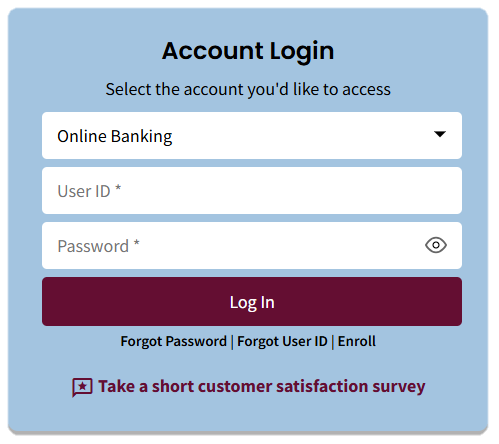
    Account Login

    Select the account you'd like to access

    Forgot Password | First Time Login | Help

    reviews Take a short customer satisfaction survey

    Unauthorized use is a crime.

FNBA
  • Personal
        • Bank
          • Online & Mobile Banking
          • Digital Banking Upgrade
          • Checking Accounts
          • Savings Accounts
          • Money Market Deposit Accounts
          • CDs & IRAs
          • Debit Cards
          • Credit Cards
          • Safe Deposit Services
        • Invest
          • Retirement & Wealth Management
        • Borrow
          • Personal Loans
          • Home Equity Loans
        • Solutions
          • Online & Mobile Banking
          • Fraud Prevention
          • Zelle
        • Home Loan Center
          • Buy a Home
          • Build a Home
          • Renovate a Home
          • Helpful Calculators
          • Manage Your Existing Loan
          • Prequalify and Apply
        • Escrow
          • Escrow Services
        • Coming Oct. 19, 2026: A better digital banking experience
          • Let's Get Ready
  • Business
        • Banking
          • Online & Mobile Banking
          • Digital Banking Upgrade
          • Checking Accounts
          • Savings Accounts and CDs
          • Money Market Deposit Accounts
          • IntraFi Network Deposits℠
          • Debit Cards
          • Credit Cards
          • Safe Deposit Services
        • Financing
          • Loans & Lines of Credit
          • SBA Loans
        • Investing
          • Investment Management
        • Real Estate
          • Property Sales
        • Solutions
          • Treasury Management
          • Merchant Services
          • Fraud Prevention
          • Business Succession Planning
        • Escrow
          • Escrow Services
        • A woman in a warehouse uses a tablet while standing beside Le Creuset cookware boxes and kitchen items on a metal table. Shelves filled with orange boxes are in the background.
        • Coming Oct. 19, 2026: A better digital banking experience
          • Let's Get Ready
  • Commercial
        • Commercial Financing
          • Construction & Real Estate Loans
          • Equipment Loans
          • Lines of Credit
          • Corporate Financing
          • Cash Flow Solutions
        • Treasury Management
          • Payables Solutions
          • Receivables Solutions
          • Corporate Cards
          • Merchant Services
          • Cybersecurity and Fraud Prevention
          • Digital Banking Upgrade
        • Investment Management
          • Business & Institutions
        • Industry Expertise
          • Alaska Native Enterprises
          • Infrastructure & Construction
          • Medical & Health Care
          • Nonprofits
          • Oil & Gas
          • Travel & Tourism
        • Business person with luggage using a credit car
          Cropped shot of a businesswoman using her laptop to shop online while sitting in the airport
        • Coming Oct. 19, 2026: A better digital banking experience
          • Let's Get Ready
  • Wealth & Trust
        • Individuals
          • Personal Services
          • Trust Services
        • Business & Institutions
          • Business & Institutions
          • Business Succession Planning
        • About
          • About
        • Coming Oct. 19, 2026: A better digital banking experience
          • Let's Get Ready
  • About
        • Who We Are
          • Mission, Vision and Values
          • Board of Directors
          • Leadership Team
          • Your Banking Team
          • Our History
        • Our Impact
          • Community Support
          • Donation Requests
        • Shareholder Relations
          • Shareholder Relations
          • Financial Reports
          • 2025 Annual Highlights
        • News
          • News and Events
          • Video Success Stories
          • Business Advantage
          • Workshop Webinars
          • Alaska’s Economy
          • Fraud Prevention and Alerts
        • Supporting Alaska's communities since 1922
          • Community Support
  • Careers
  • location_on Locations
  • help Contact & Support
  • Login

    Account Login

    Select the account you'd like to access

    Forgot Password | First Time Login | Help

    reviews Take a short customer satisfaction survey

    Unauthorized use is a crime.

Digital Support Center

  1. Home
  2. Digital Banking Upgrade
  3. Business
  4. Account Linking
  5. Web Connect How-To Guide
  • Business
      • Business Account Linking Overview
      • Account Linking for Business Banking Customers
      • Web Connect How-To Guide
      • QuickBooks Desktop - Web Connect
      • QuickBooks Online – Express Web Connect
      • QuickBooks Online – Web Connect
      • Quicken – Express Web Connect 
      • Quicken - Web Connect
      • ACH and Wires Overview
      • ACH Imports
      • ACH Participants
      • ACH Templates
      • Business Wires Payee Domestic
      • Business Wires Payee International
      • One-Time ACH Payment
      • Wire Activity
      • Wire Types
      • Business Bill Pay Overview
      • Business Bill Pay Guide
      • Check Positive Pay Overview
      • Business Loans Overview
      • Mobile Banking Overview (Business)
      • Mobile Banking How To Guide - Business
      • Text Banking
      • Mobile Deposit Overview (Business)
      • Online Banking Overview (Business)
      • Business Banking General Entitlements
      • Business Customer Profiles
      • Login Page
      • Multifactor Authentication (MFA)
      • Statements and Statement Preferences (Business)
      • Forgot Password
      • Multi-Profile
      • Account Summary
      • Text Banking
      • Stop Payments
      • Remote Deposit Overview
      • Tokens Overview
      • Multifactor Authentication (MFA)
      • Transfers Overview (Business)
      • Internal Transfer Templates
      • Business User Administration Overview
      • Business User Administration
      • Zelle® Overview (Business) 
      • How To Use Zelle® (business)
  • Personal
      • Personal Account Linking Overview
      • Account Linking Guide for Personal Banking Customers
      • Web Connect How-To Guide
      • QuickBooks Desktop - Web Connect
      • QuickBooks Online – Express Web Connect
      • QuickBooks Online – Web Connect
      • Quicken – Express Web Connect 
      • Quicken - Web Connect 
      • Bill Pay Overview
      • Bill Pay
      • Debit Card Controls Overview
      • Debit Card Controls - Desktop
      • Debit Card Controls - Mobile
      • Set PIN
      • Digital Wallet
      • e-Statements and Notices Overview
      • Statements and Statement Preferences
      • Personal Loans Overview
      • Mobile Banking Overview
      • Debit Card Controls - Mobile
      • Text Banking
      • My Finances Overview
      • Online Banking Overview
      • Login Page
      • Forgot Password
      • Account Summary
      • The Registration Process
      • Text Banking
      • Stop Payments
      • Deluxe Check Ordering
      • Account Alerts
      • Transfers Overview
      • Zelle® Overview

Web Connect How-To Guide

Business › Account Linking

Purpose

Account linking (data aggregation) allows customers to connect their First National accounts to supported accounting software and financial applications, such as QuickBooks, Quicken and other tools. Web Connect is a form of data aggregation where customers download a QFX or QBO file from online banking and use it to import transaction information in to QuickBooks or Quicken.

  • Accessing Web Connect
  • Downloading Quicken and QuickBooks files
  • Upload files into Quicken and QuickBooks
Accessing Web Connect
  1.  Log in to online banking: 
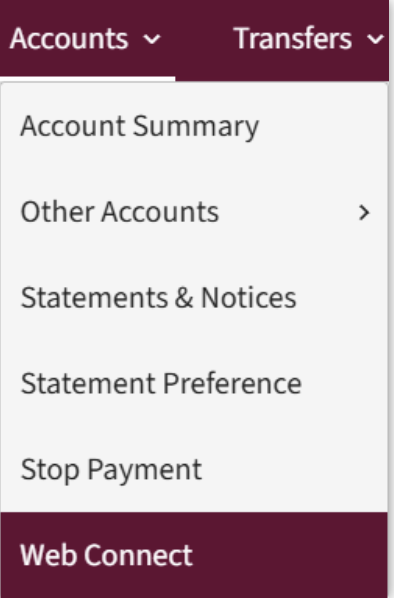
  1. Select the Accounts tab from the home page. 
    Select Web Connect from the dropdown menu.
Downloading Quicken and QuickBooks files

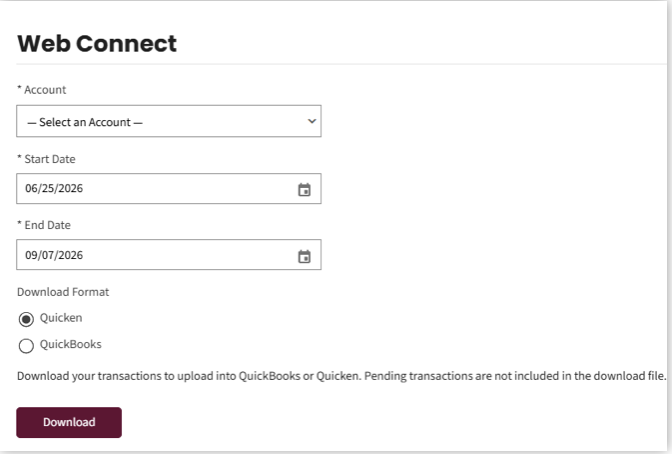
The Web Connect screen displays. 

  1. Select the Account dropdown to view and select eligible accounts.
  2. Use the Start Date and End Date calendar fields to select a date range for which you would like to download transactions.
  3. Select your Download format. Options are Quicken and QuickBooks.
  4. Click Download.
Downloading Quicken and QuickBooks files
Upload files into Quicken and QuickBooks

The Web Connect screen displays. 

  1. Select the Account dropdown to view and select eligible accounts.
  2. Use the Start Date and End Date calendar fields to select a date range for which you would like to download transactions.
  3. Select your Download format. Options are Quicken and QuickBooks.
  4. Click Download.
Downloading Quicken and QuickBooks files

After clicking Download the appropriate file, follow your Quicken or QuickBooks application instructions to upload the QFX or QBO file.

  1. Quicken (Windows)
    1. In Quicken, choose File > File Import > Web Connect (.QFX) File.
    2. Use the import dialog to select the Web Connect file you downloaded. An “Import Downloaded Transactions” window opens.
    3. Choose Link to an existing account. Select the matching account in the drop-down menu. Associate the imported transactions to the correct account listed in Quicken.
    4. Repeat this step for each account you have connected to this institution.

  2. Quicken (Mac)
    1. Drag and drop the downloaded file into the box titled Drop download file. Choose Web Connect for the “Connection Type” if prompted.
    2. ii.In the “Accounts Found” screen, ensure you associate each new account to the appropriate account already listed in Quicken. Under the Action column, click Link to pick your existing account.

      Important: Do NOT select “ADD” in the Action column unless you intend to add a new account to Quicken.

    3. Click Finish.

  3. QuickBooks (Windows)
    1. Choose File > Utilities > Import > Web Connect Files. Locate your saved Web Connect file and select to import.
    2. In the Select Bank Account dialog, select Use an existing QuickBooks account.

      Important: Do NOT select “Create a new QuickBooks account” unless you intend to add a new account to QuickBooks.

    3. In the drop-down list, choose your QuickBooks account(s) and click Continue. Confirm by selecting OK.

  4. QuickBooks (Mac)
    1. Choose File > Import > From Web Connect. Use the import dialog to import your saved Web Connect file.
    2. In the Account Association window, click Select an Account to choose the appropriate existing account register.

      Important: Do NOT select “New” under the action column unless you intend to add a new account to QuickBooks.

    3. Click Continue and OK for any dialog boxes that require action.

  5. QuickBooks Online
    1. Choose Banking from the left column.
    2. Click File Upload in the upper-right side of the screen and use the upload dialog to locate the Web Connect file you downloaded in step a.
    3. Choose the appropriate account from the drop-down menu under QuickBooks Account and then click Next.

      Important: Do NOT choose “+Add New” in the drop-down menu unless you intend to add a new account to QuickBooks Online.

    4. When the import is finished, click Let’s go!
    5. Review the For Review tab on the Banking page to view what was downloaded.
    6. Click Next, and then click Done.
    7. Repeat this step for each account that you have connected to this institution.

Source: https://www.fnbalaska.com/help-guide/web-connect-how-to-guide/

How Can We Help?

Locations

Contact & Support

Current Rates

Shape
Your
Tomorrow

Swift Code
FITKUS78

Routing Number
125200060

NMLS #640297

  • Terms of Use
  • Privacy Policy
  • Disclosures and Fees
  • Downloadable Forms
  • Report Misconduct
  • Sitemap
FNBee Login

Connect with us

  • Facebook (opens in a new tab)
  • X (opens in a new tab)
  • Instagram (opens in a new tab)
  • LinkedIn (opens in a new tab)
Equal Housing Lender Logo
© 2026 Copyright First National Bank Alaska

You're Leaving First National's Website

First National does not control, endorse, guarantee nor is responsible for the content of linked sites, which may have different privacy policies and less security.

Are you sure you want to proceed?

Yes