Wire Operations
The Wire Operations feature of Create and Configure Digital allows authorized bank administrators to review, approve, process and download wire transfers.
Accessing Wire File Processing
- Log in to the Admin Portal: Enter the Customer ID and Password, then select the Continue button.
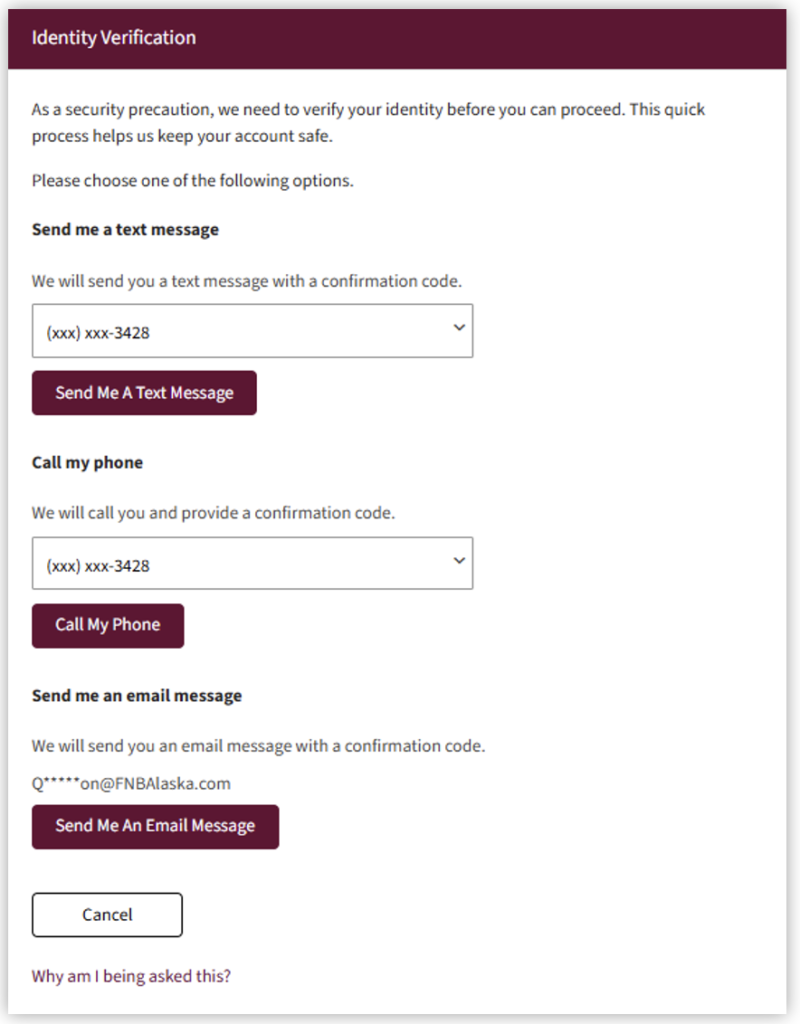
- Complete the multifactor authentication process.
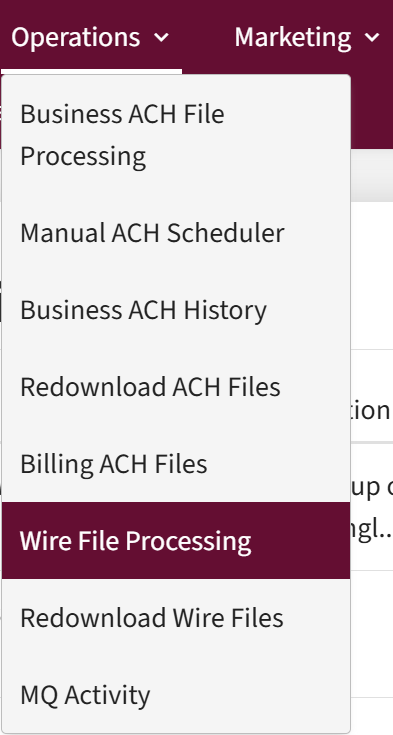
- Select the Operations tab, then select Wire File Processing.
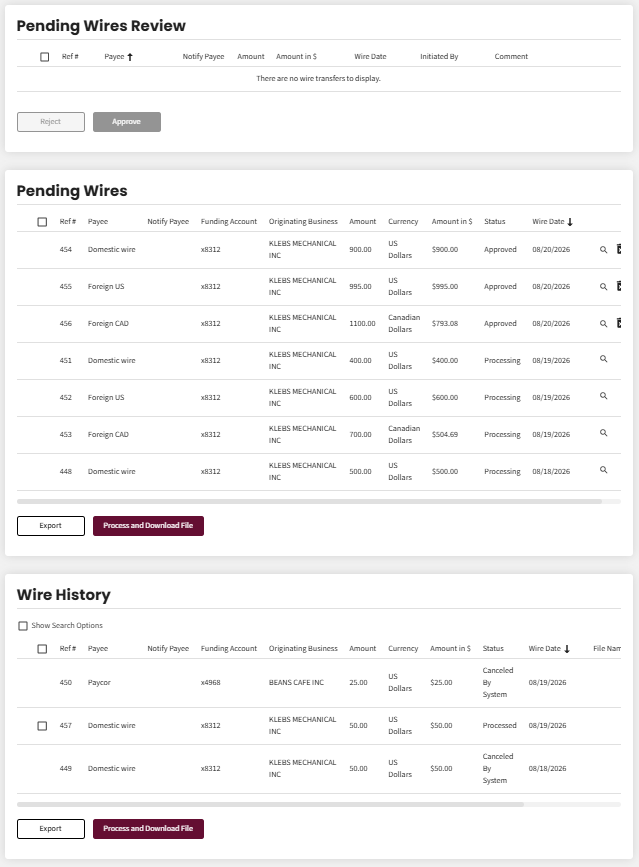
- A screen with the sections Pending Wires Review, Pending Wires, and Wire History screen displays.
Wire File Processing
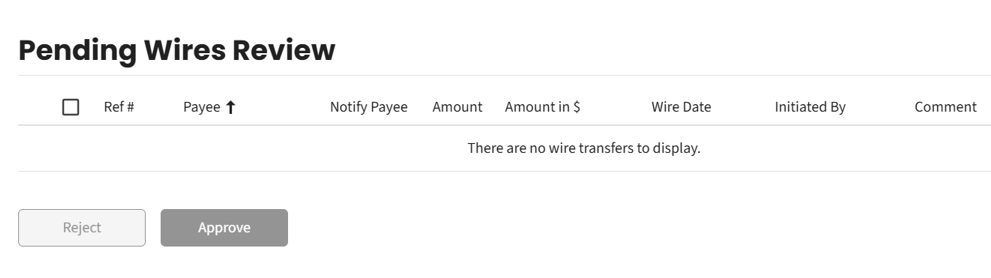
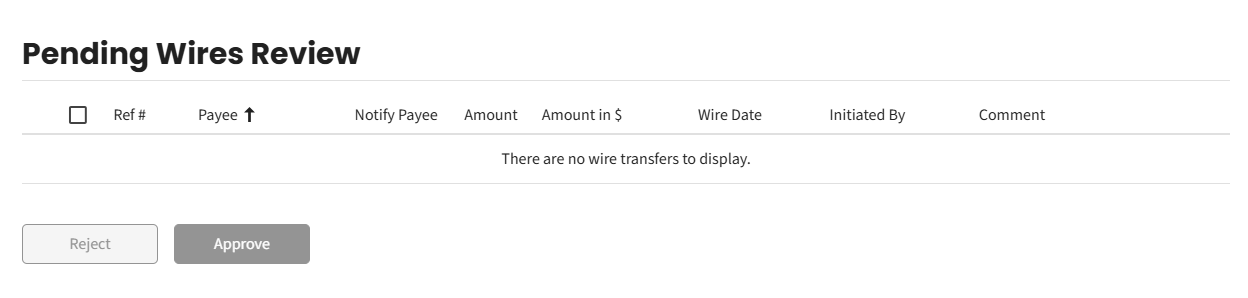
- Review the Pending Wire Review section for wire transfers that must be approved by the administrator before processing. The administrator will be alerted through Notifi that a pending transfer is waiting for approval.
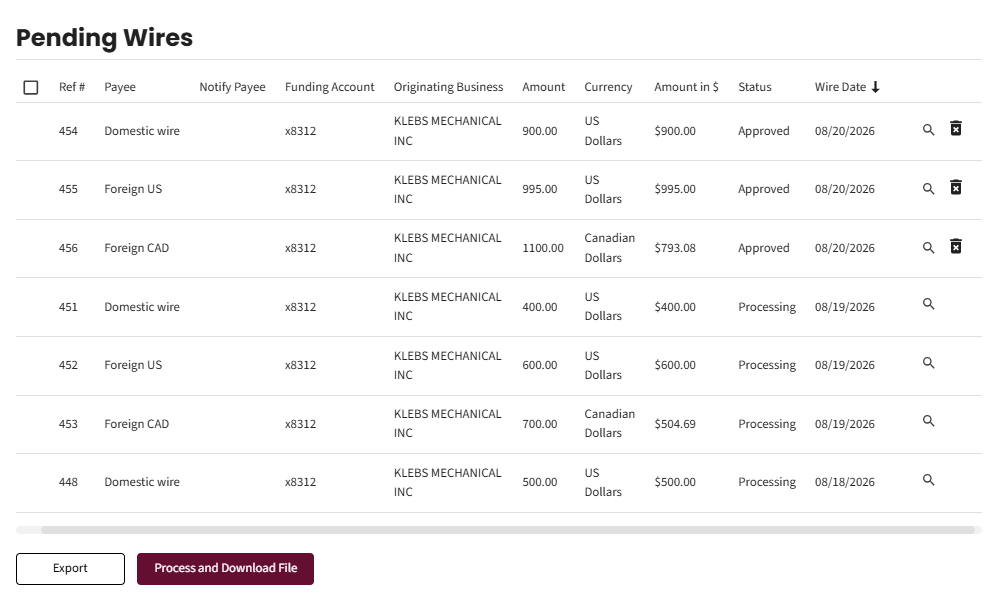
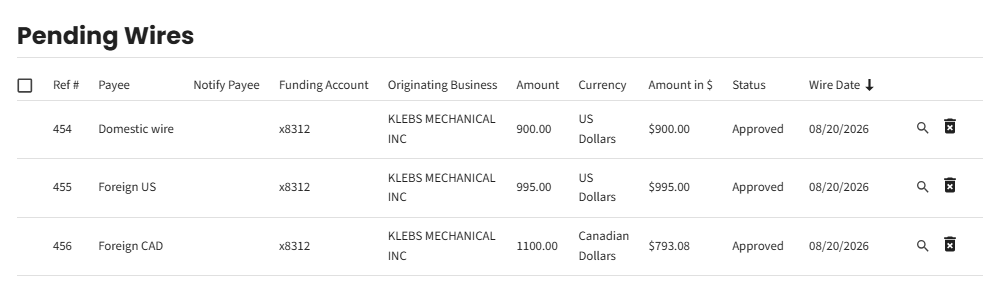
- Review the Pending Wires section for wires that have been approved by the administrator or business and for wires that need to be manually processed.
View Pending Wire Details
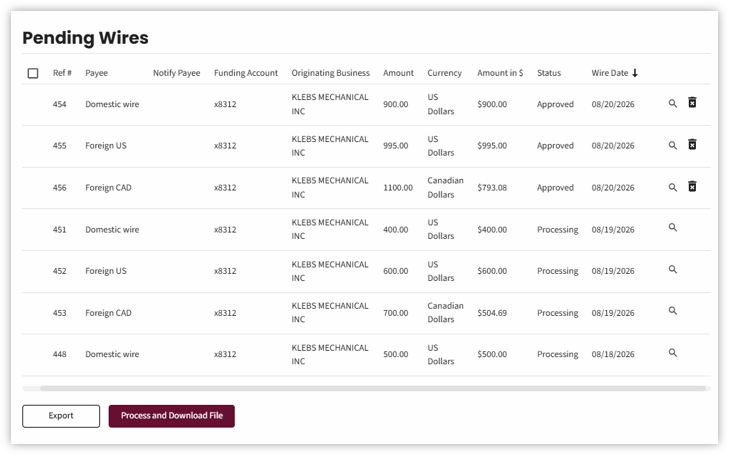
- Review Pending Wires.
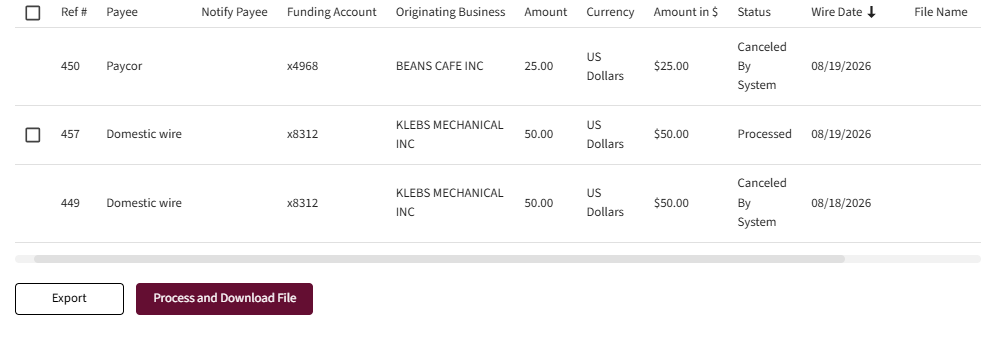
Scroll to the right using the toolbar on the bottom to see magnifying glass which will show wire details. Although there is a delete button (trash can), the customer will delete the wire, not the bank.
- By clicking Export, customer can export an XML file.
Process and Download File is not being used by the bank.
Show Search Options
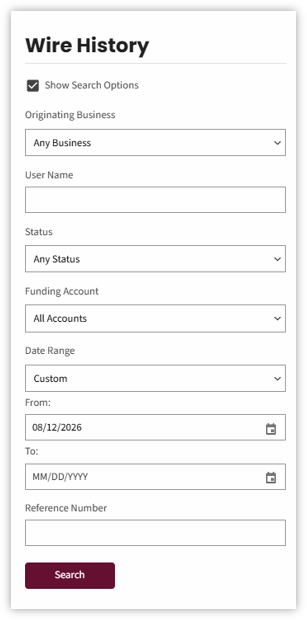
- Check the Show Search Options box to view the search options for wires.
Search Options.
- Make selections from the Originating Business drop-down menus.
- Business
- Status
- Funding Account
- Date Range
Enter data in fields:
- User name
- Reference Number
Select Search
- The Search Results display below the Search button.
- The details for each wire will display.
- Payee
- Funding Account
- Business
- Amount
- Status
- Wire Date
Delete Pending Wire Transfers
Select the Trash Can icon to delete a pending Wire Transfer. Scroll to the right, to locate the icon.
Approval Workflow
First National does not approve outgoing wires. Only the customers approve wires.