Accessing Stop Payments
- Log in to online banking:
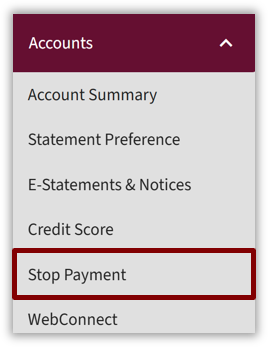
- Select the Accounts tab from the home page.
- Select Stop Payments from the dropdown menu.
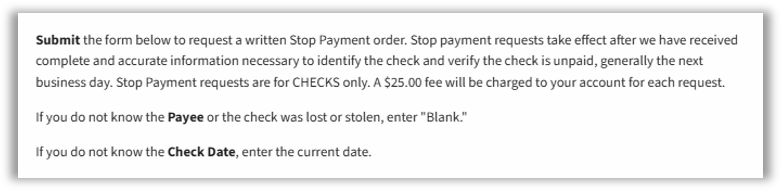
- A stop payment fee message may display.
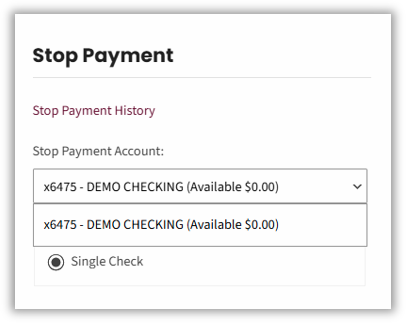
- The Stop Payment screen displays. Select the Stop Payment Account dropdown to view the eligible accounts that allow stop payments.
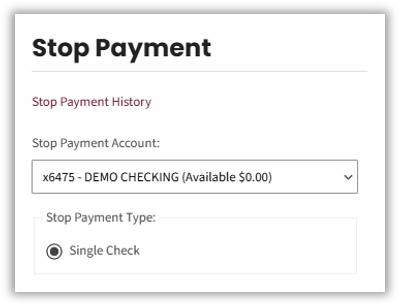
To make a stop payment:
- Select the appropriate account from the Stop Payment Account dropdown.
- Select the Stop Payment Type:
- Single Check
- For a single check:
- Enter the check number in the Check Number field.
- Enter the check amount in the Check Amount field.
- Click on the Calendar icon to select the date check was written.
- Enter optional information, if needed.
- Payee
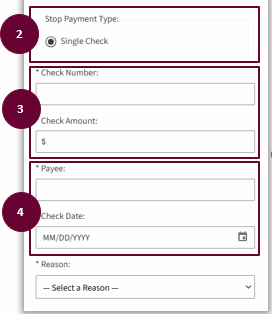
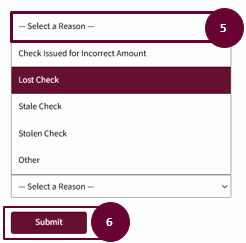
- Enter the reason for the stop payment.
- Select Submit.
- A confirmation will display, whether it was placed or not placed. A stop payment will not be placed if:
- The check has already been processed and cannot be stopped.
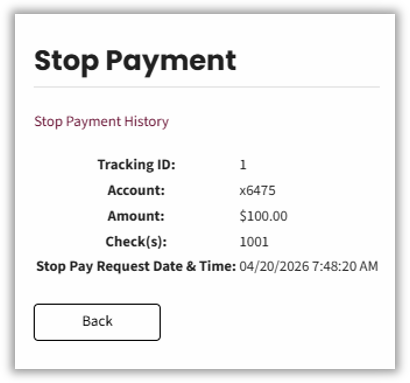
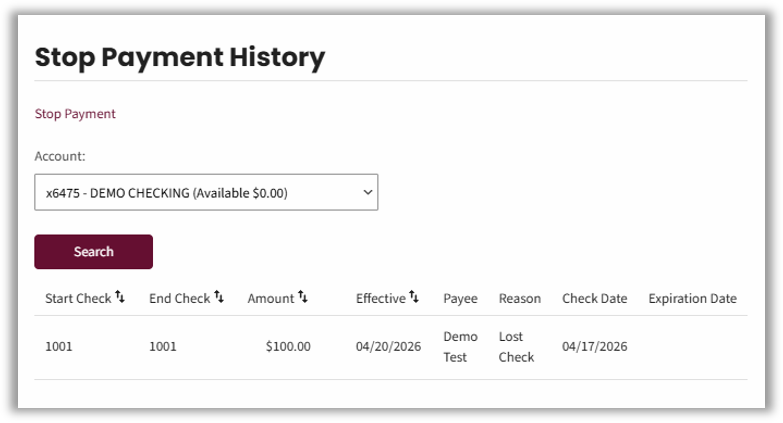
Stop Payment History
Follow the steps below to review stop payments history.
- Select the Stop Payment History link on the Stop Payment view.
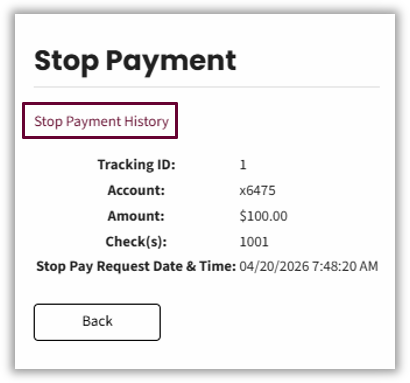
- Select the appropriate account for the active stop payment request from the Account dropdown.
- Select the Search button.
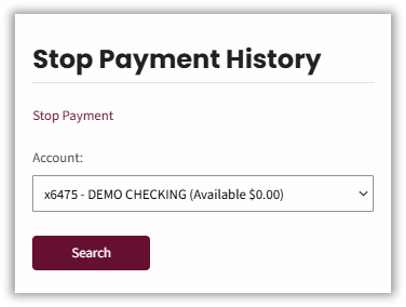
- The history section will display all active stop payments.