Customer Profile
Follow the steps below to access User Profile and Settings:
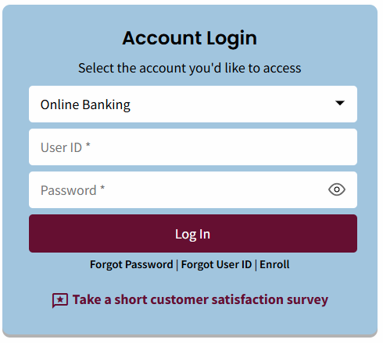
- Enter User ID and Password, then select the Log In button.
The Account Summary home page displays:
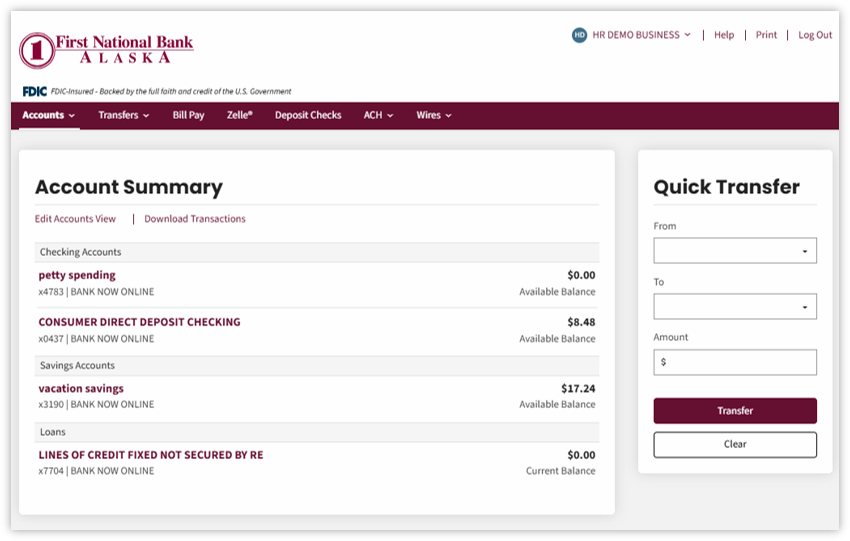
- Your name displays in the upper-right side of the screen

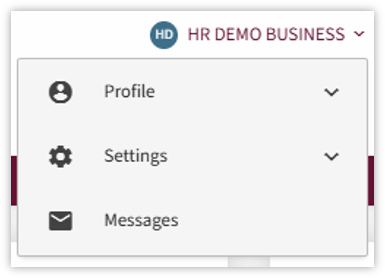
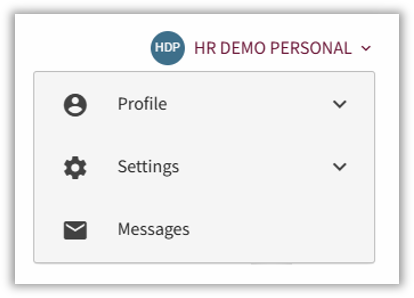
- Select the down arrow next to the name and three menu options will appear:
- Profile
- Settings
- Message
Profile Overview
The Profile option provides access to screens where a you can maintain your contact and login information such as:
- Contact Information
- Password
- Blocked Numbers
- Tax Documents
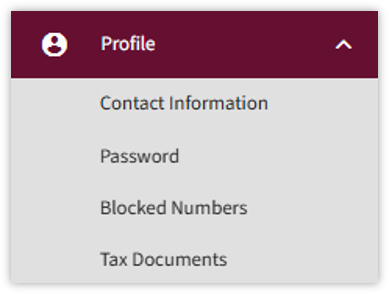
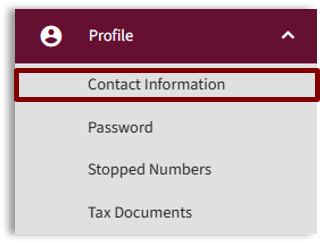
To review or update Contact Information, click on the Contact Information link located on the top right-hand corner under your name.
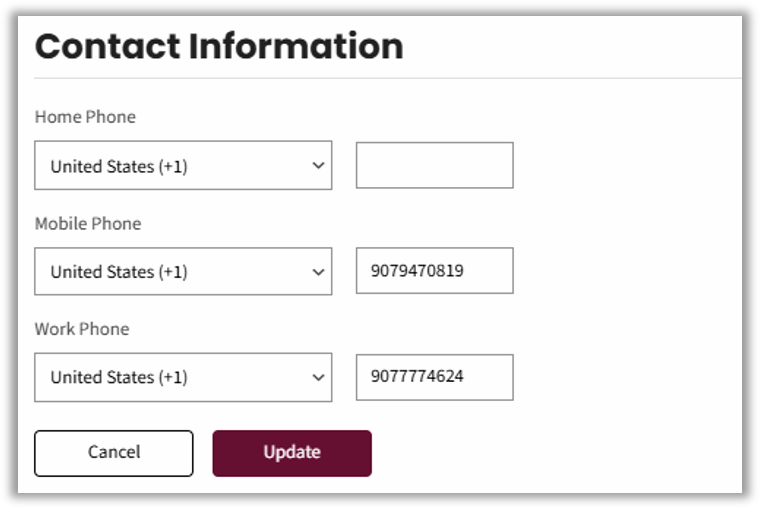
- Phone: When Contact Information is selected, the Contact Information view will display.
- Both international and U.S. domestic phone numbers are supported.
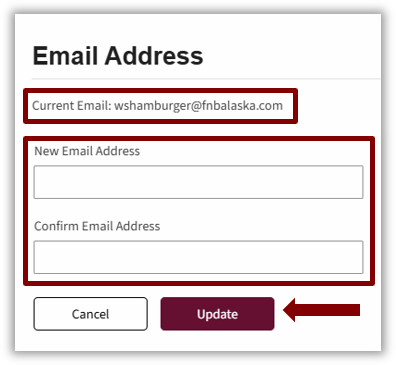
- Email: The current Email Address is listed at the top. To change:
- Enter the new email address in the New Email Address and Confirm Email Address fields.

NOTE: Email Address and Confirm Email Address fields must match.
- Select Update and you will receive a message that the email address has been updated.

Multifactor authentication challenge protects certain actions. Changing email address and password will trigger a challenge.
If the challenge was presented at login, you will not be challenged again for any other action until you log out and start a new session with a new login.
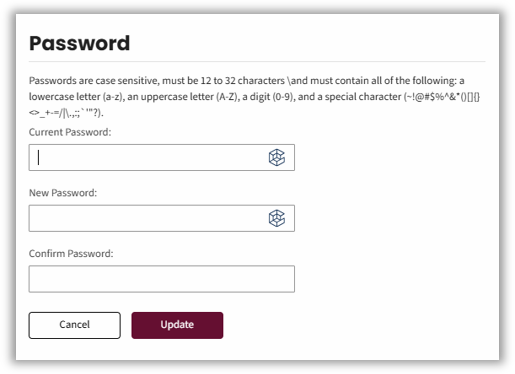
- Password: The password requirements are displayed at the top. The password must be between 12 and 32 characters.
- The system does not allow you to reuse a password if it has been used within the last 10 passwords.
- The Current Password must match the one in the top box to change to a new one.
- Enter the New Password, then confirm it, and select the Update button.
- The password must meet the requirements:
- 12-32 characters long
- At least one lower case letter
- At least one uppercase letter
- At least one number
- At least one special character from the following list: ~`@#$%^&*()_-+={[}]|\:l”‘<,>.?/ and space.
- May not use a password previously used.
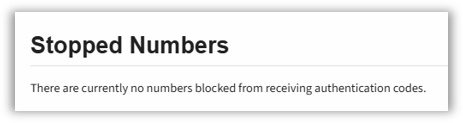
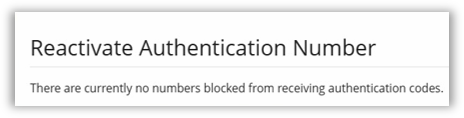
- Blocked Numbers: Supports customers that have sent STOP when challenged by multifactor authentication.
A Customer can reactivate the Authentication Number by using an email address on file when challenged by the multifactor authentication.
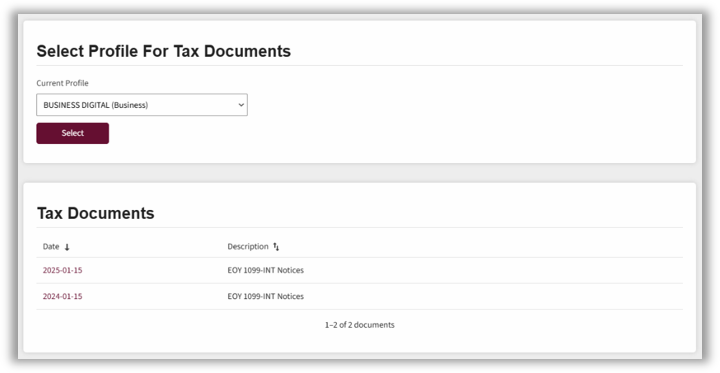
- Tax Documents: The Tax Documents section displays any available tax documents (such as 1099s) that First National makes available through digital banking.
Settings Overview
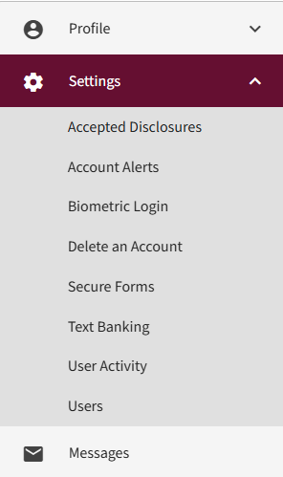
The following options are available under the Settings menu:
- Accepted Disclosures
- Account Alerts
- Biometric Login
- Delete an Account
- Secure Forms
- Text Banking
- User Activity
- Users
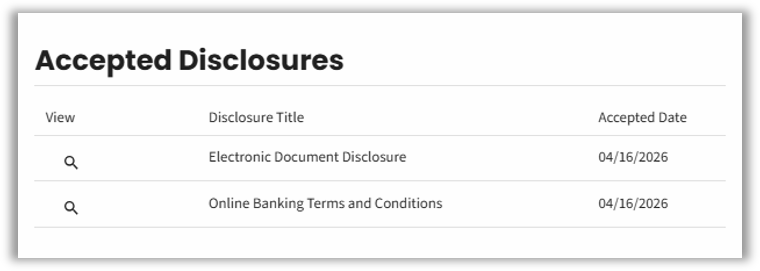
- Accepted Disclosures
- On the Accepted Disclosures page, the system tracks a record of the disclosure and when it was accepted.
- Customers can select the View icon to see the associated disclosure. The customer sees the terms in the version that was active when they signed it.
- Account Alerts:
- Account alerts are available to all customers. Business customers also have access to ACH and wire activity alerts. Customers are automatically enrolled to receive these types of alerts and do not need access to the Notifi Alert application.
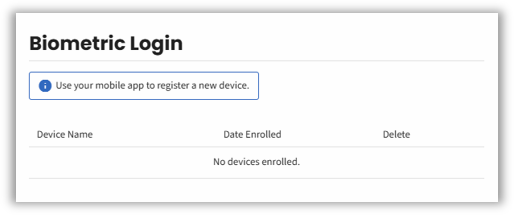
- Biometric Login: Tracks which mobile devices are enrolled for biometric authentication, such as face ID and fingerprint ID
Customer can delete the records which remove the ability to sign in through biometric authentication from that device.
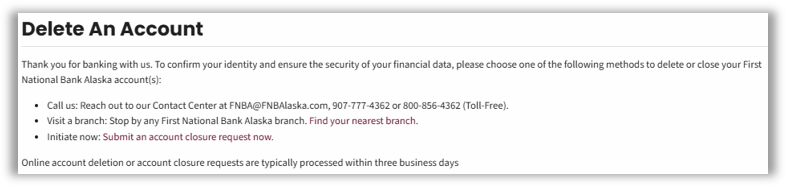
- Delete an Account: Provides standard instructions for deleting and closing an account.
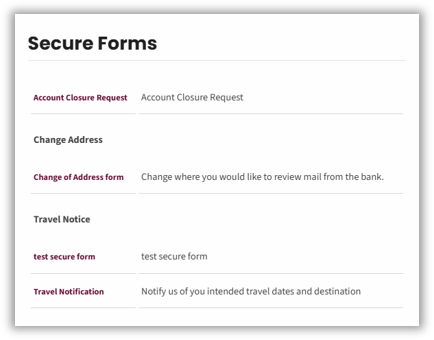
- Secure Forms: Customer can access it from here and under the Profile menu section. There are additional secure form options under Settings.
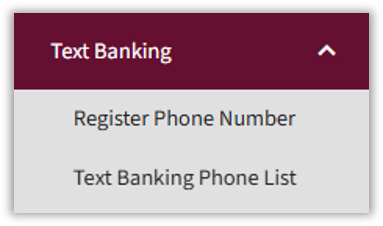
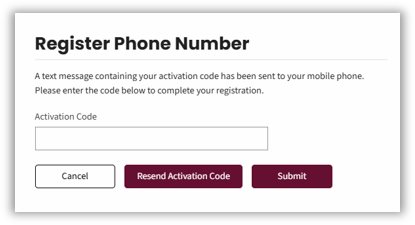
- Text Banking: Services provided through text messages.
You can request bank information such as:- B – Balance: Current account balance
- H – 5 Trans History: Five most current transactions
- M – Next 5: request additional five transactions history
- T – Transfer: Request transfer between accounts.
Transfer Format: TRANS<from acct> <to acct> - N- Nicknames: Provide account nicknames
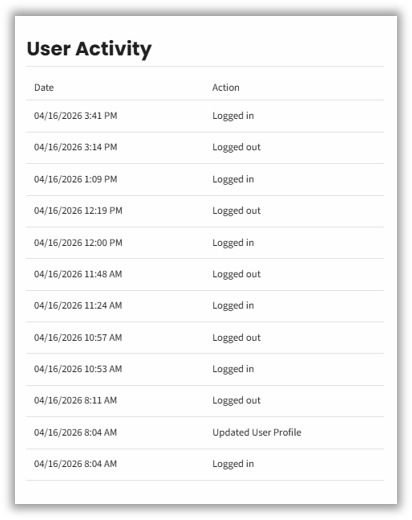
- User Activity: Tracks your activity on the account. It monitors eight different events such as login attempts, both successful and failed, and transfers.
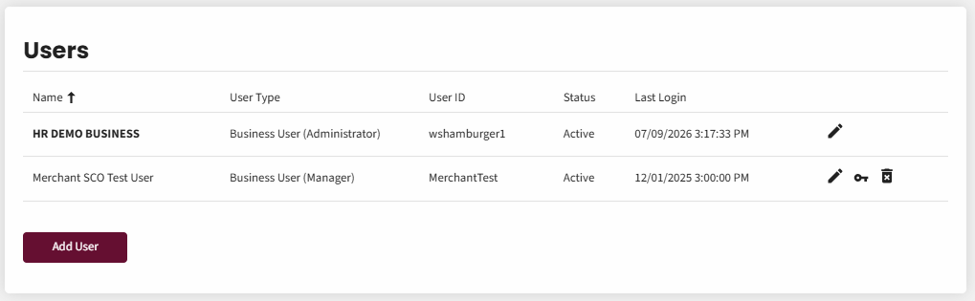
- User: Businesses can manage their own users. Business users can be added, edited or deleted by a Business Administrated or designated Business Manager.
Messages Overview
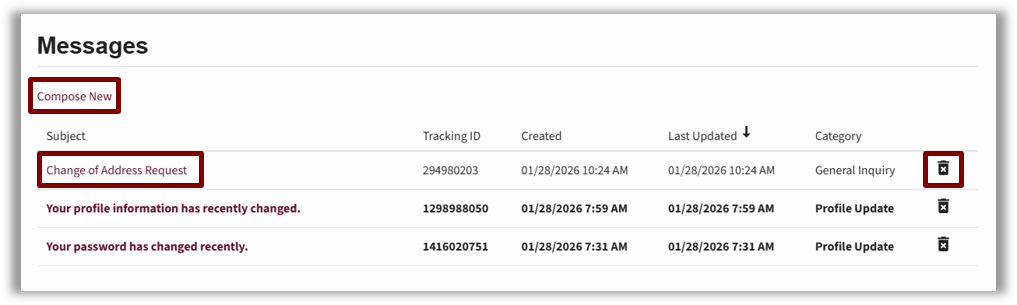
You will have visibility to Messages (Secure Message). This allows you to securely send inquiries and request using your Online Banking.
- The Messages option opens your messages within Online banking.
- You can compose, read or delete messages from this view.