What is Digital Wallet?
Digital wallet is an app and software that allows you to access your debit card information and make purchases securely on your mobile devices (smartphone, smartwatch, and tablet) instead of using a physical debit card or cash. You can pay quickly with a tap of your smartphone anywhere digital wallets are accepted.
Digital wallet turns a smart phone, tablet or smartwatch into a secure payment option:
- Payment information is stored securely.
- The phone, tablet or watch communicates with the payment terminal.
- Paying with a digital wallet is safer than using a card, because the real number is never revealed.
- The device’s security keeps information locked away.
What are the benefits of using digital wallet?
Digital wallet simplifies your experience by largely eliminating the need to enter your debit card number when purchasing on a connected device. It helps prevent fraud by removing sensitive card and account information from the payment process.
- Enhances transaction efficiency
- Improves transaction security
- Provides a secure method for third-party enablement (for example, wallet, near-field communication [NFC], and QR Codes)
- Reduces the risk of fraud in digital channels

Adding Debit Card with Apple Pay
This How-to Guide provides an overview of digital wallet. Upon completion, you will be able to set up a debit card within the Apple and/or Android Operating System.
NOTE: Due to Android security restrictions, this guide uses screenshots from the Apple (IOS) version of the Digital Banking app. Although screen layouts may vary slightly between Apple and Android devices, the features, functionality and information remain substantially the same.
Adding a Debit Card with Apple Pay
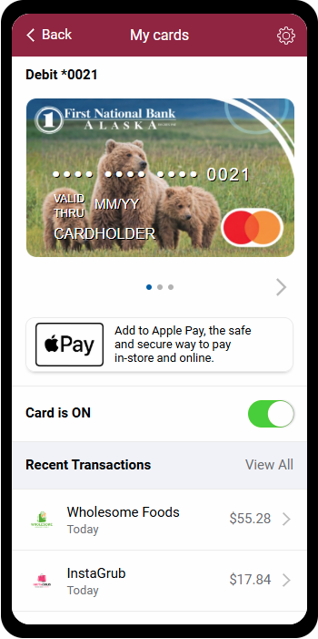
- On the My Cards homepage, tap the Add to Apple Pay.
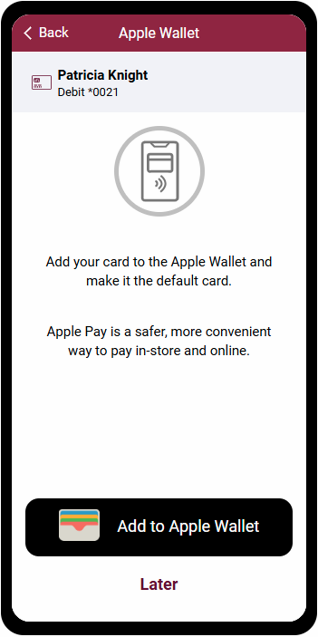
- Tap the Add to Apple Wallet icon.
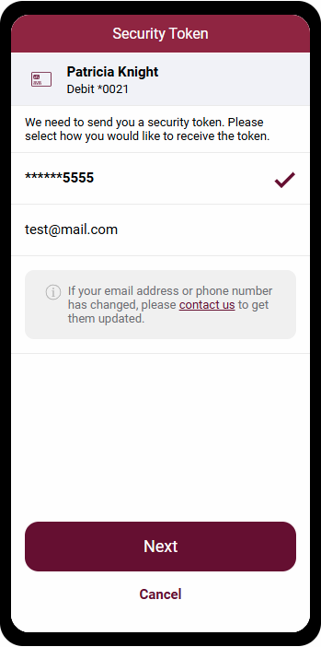
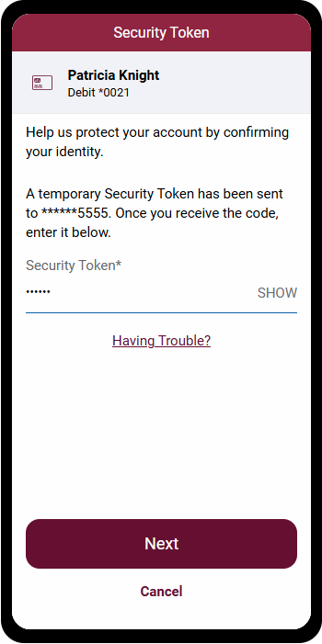
- Security Token will display.
This will prompt you to verify how you would like to receive your verification code.
Tap Next to confirm the delivery method.
- Enter the verification code under Security Token. Tap Next to confirm.
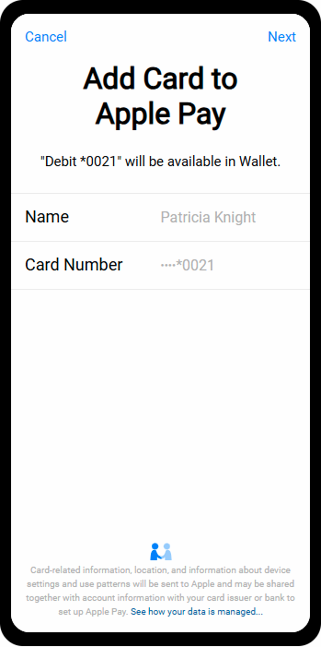
- On the Add Card to Apple Pay view, tap Next.
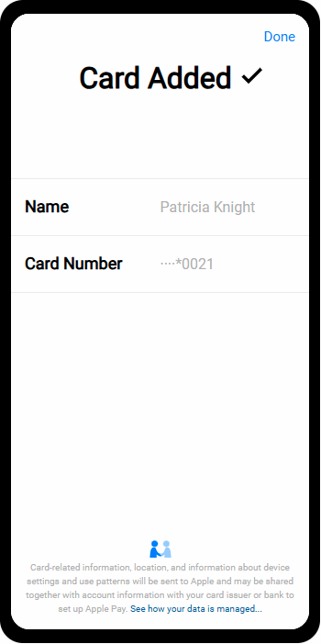
- Your card has now been added.