Accessing Transfer Templates
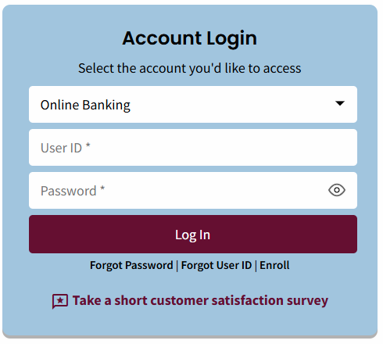
- Log in to the Business Portal: Enter User ID and Password, then select the Log In button.
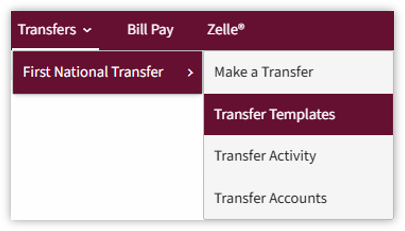
- Select the Transfer tab, then select Transfer Templates from the menu.
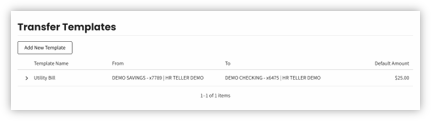
- The Transfer Templates homepage displays.
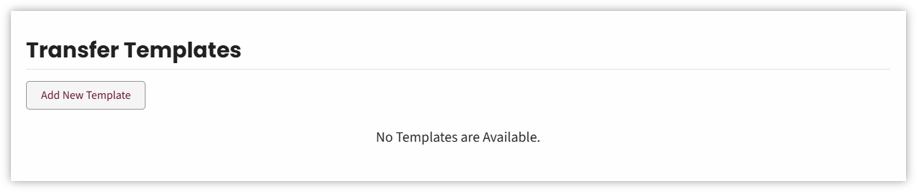

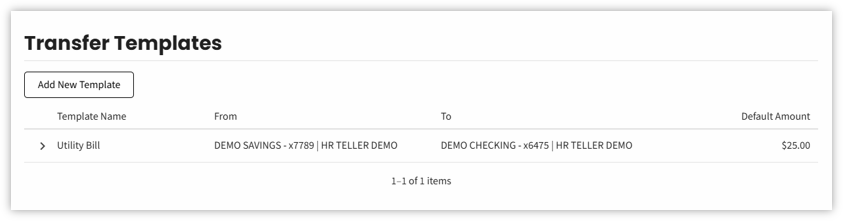
Existing templates display in the Transfer Templates view. If templates do not exist, the view displays blank.
Adding New Templates
- Select the Add New Template button on the Transfer Templates homepage
- Enter the following information in the Add Template view:
- Template Name – name of the template (choose any name).
- From – the account the funds will be debited from.
- To – the account the funds will be deposited into.
- Default Transfer Amount – the transfer template dollar amount.
- Maximum Transfer Amount –The highest dollar amount that can be transferred using this template. The value entered must be equal to or greater than the Default Transfer Amount and cannot be less.
- Note – specific notes about the transfer.
- Level of Approver Required – the level of the individual needed to approve the transfer. This is different than number of approvals required.
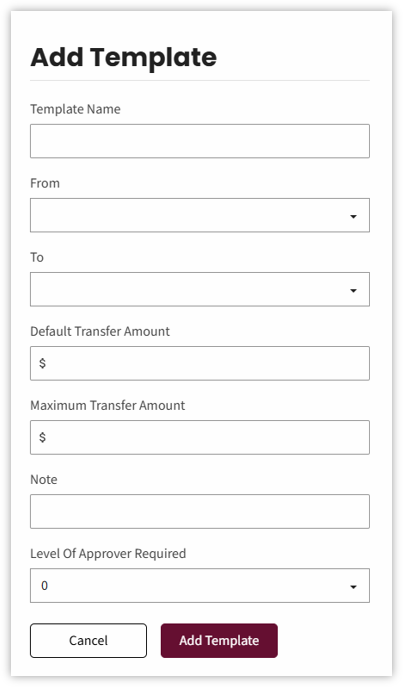
- Select the Add Template button to save the changes.
Because template access is not controlled at the template level, access to templates gives access to any created. Using the Level of Approver Required allows businesses to control who can initiate a transfer template. Businesses and Business Admins will be set up as a level 2, but lower access can be given to delegates as needed. Select zero, one, or two depending on the level of the person you need to approve the template.
- A confirmation displays indicating the transfer template was added.

Editing Transfer Templates
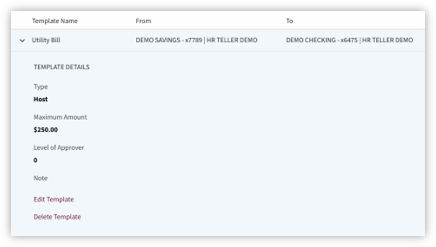
- Select the arrow pointing to the Template Name.
- The Template Details display.
Select the Edit Template hyperlink
- Make the necessary changes on the Edit Template view, then select the Save button to save the changes.
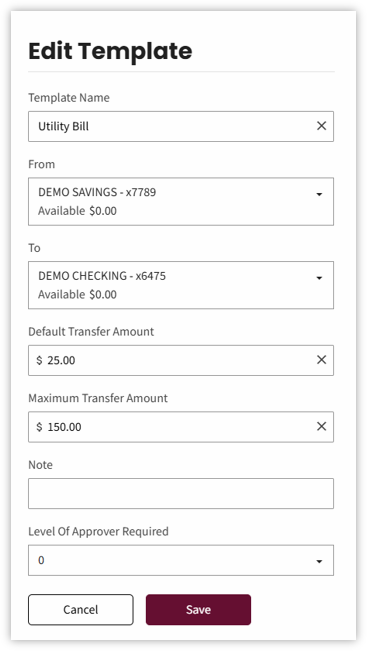
- A confirmation displays indicating the Transfer Template was updated.

Delete Transfer Templates
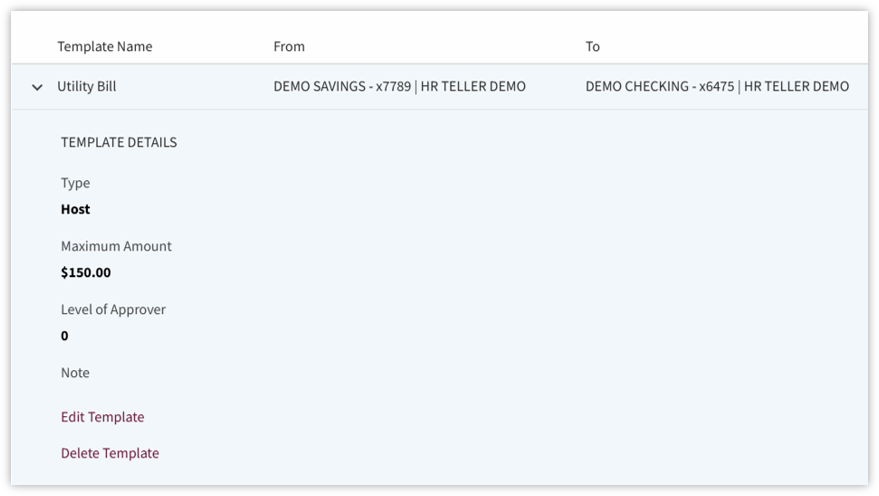
- Select the arrow pointing to the Template Name.
- The Template Details display.
Select the Delete Template hyperlink.
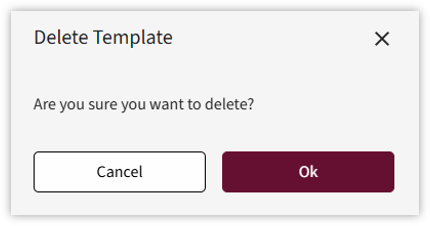
- A pop up displays to confirm the delete request.
Select OK to delete the template.
- A confirmation displays indicating the Transfer Template was deleted.

Using a Transfer Template
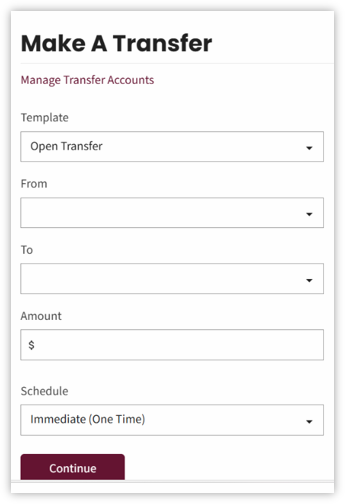
Click the Transfers – Make a transfer menu option.
From the template dropdown, select the template needed.
Information will preload into transfer fields based on the transfer template. Adjust the Amount field as needed but not to exceed the Maximum Amount listed.
Select the appropriate option from the Schedule drop-down and enter the Send on Date.
Click Continue.
Review the transfer information and if correct click Transfer.
If the transfer template and business entitlements require additional approval an awaiting approval message appears.

To review and approve a transfer:
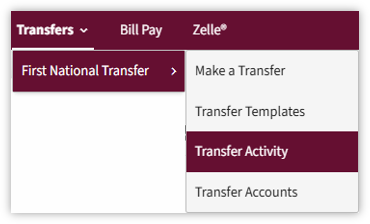
- Click the Transfers-Transfer Activity menu option.
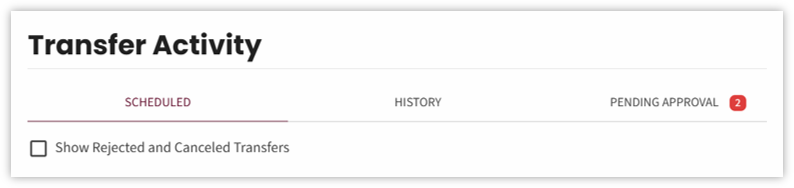
- Click the Pending Approval tab
Use the carrot next to the transfer needing approval to expand the details
3. Click the Approve or Reject button after reviewing the transfer request.