Multifactor Authentication (MFA) Overview
Our digital banking experience integrates two key operations related to Multifactor Authentication (MFA): Login Defense and Out of Band (OOB) authentication.
User Authentication Definition
Login Defense
When logging in to Online Banking, Login Defense references key data points to validate each user. These data points include:
- Country of origin – Blocks devices from countries at high risk for fraud.
- Device footprint – Conducts comprehensive review of URLs for websites where the device has been flagged as fraudulent.
- IP address.
Login Defense uses these data points to authenticate each user and responds with one of the following:
- Low risk – Allows the customer to proceed.
- Review – If the data points vary from what is expected, a One-Time PIN (OTP) challenge is triggered.
- High risk – Deny
- Blocks the login attempt because one or more login defense rules have been breached.
- The customer receives a message that they cannot login to Online Banking for security reasons.
- The customer is prompted to contact the bank.
Out of Band (OOB) Authentication
- It prompts you to validate your identity with a one-time passcode delivered via text message (SMS), phone call or email.
- Occurs at login and in-session when risk warrants it.
- One-Time PIN delivery via text message comes from a short code 36397.
- One-Time PIN delivery via phone call to domestic numbers comes from 678-498-2706.
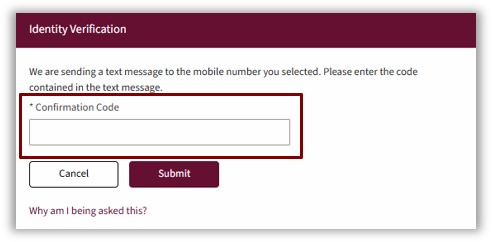
Authentication Process Workflow
Here’s an overview of how multifactor authentication works.
At Login
- You will log in to Online Banking at FNBAlaska.com or via the mobile app.
If your request meets the criteria to allow, you can proceed.
If your request does not meet the criteria, you get an MFA challenge.
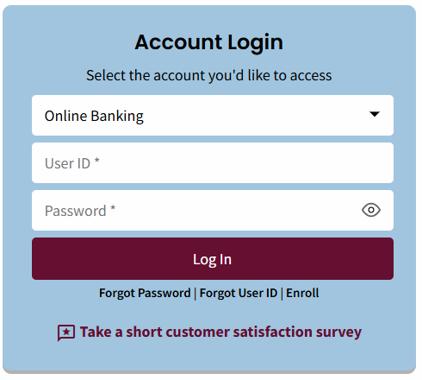
- If challenged, the Identity Verification displays. You have the option to choose to receive a One-Time PIN by:
- Text message – Select the appropriate phone number, then click the Send Me a Text Message button.
- Phone call – Select the appropriate phone number, then click the Call My Phone button
- Email- Select the Send Me an Email Message.

Phone numbers shown are pulled from Premier.
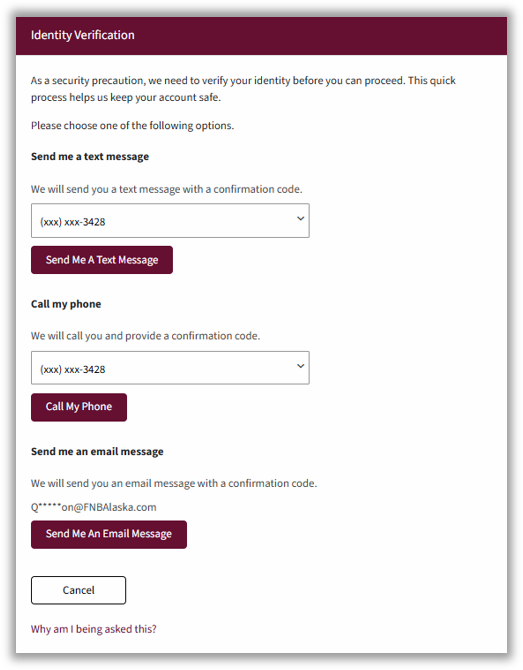
- You will enter the One-Time PIN provided by text message, phone call or email in the Confirmation Code field. Then select Submit.
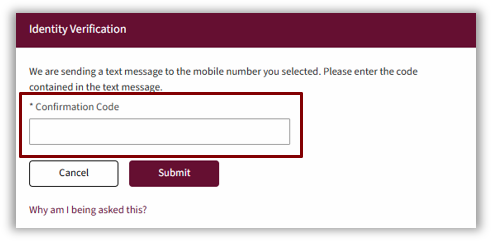
If you enter the correct code, you are authenticated and can proceed to online banking.
If you do not enter the correct code, you are returned to the challenge option screen.
After three failed attempts, you are blocked and must contact First National to unblock your account.
In Session
During an online banking session, certain customer actions will require an additional step-up challenge. These changes include changing profile settings such as email or phone number, or accessing online banking features that involve funds transfers.
In most cases, customers will only be prompted once per session
Features of the Administration Site
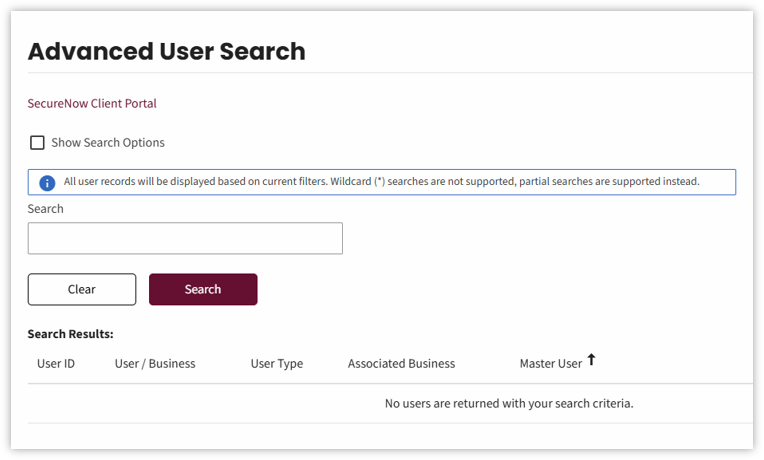
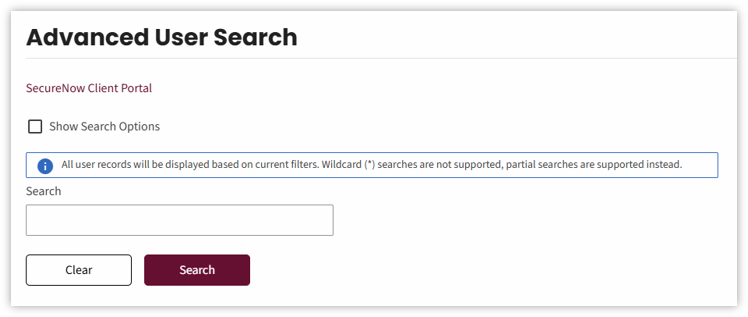
Advanced User Search
From Admin home page, enter search criteria for a customer in the Search field, then click Search or press Enter.
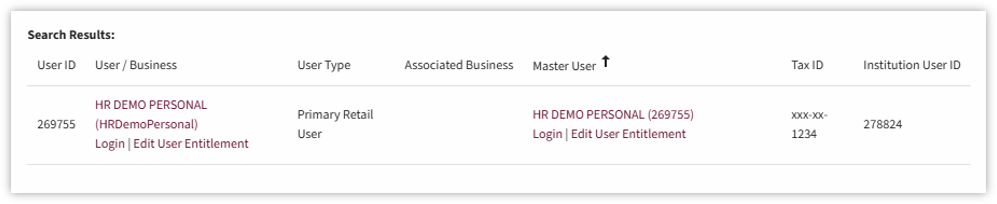
Select the customer’s name in the search results.
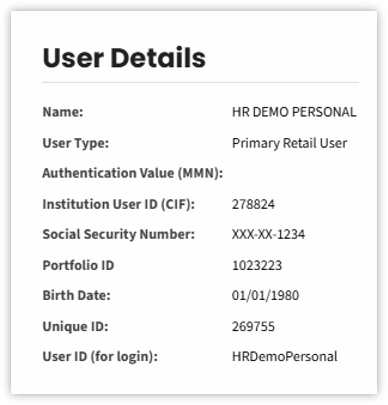
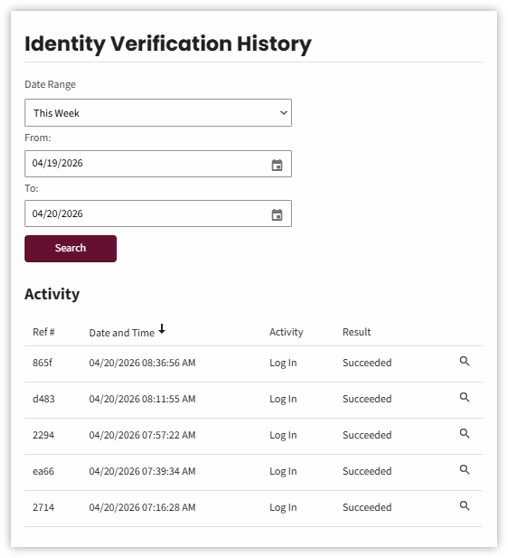
From the User Details screen, scroll down to the Identity Verification History section to review the log of their interactions with MFA.
The customer’s MFA activity for this week displays. To search for activity during a different date range, select the appropriate date range from the dropdown. Then select Search
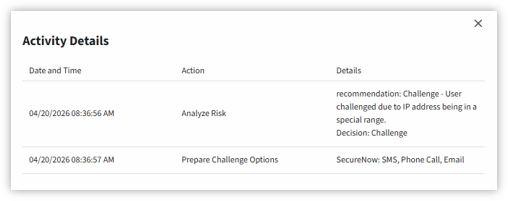
Select the magnifying glass beside a specific interaction to see more details.
The Activity Details screen displays.
To Unblock a Customer
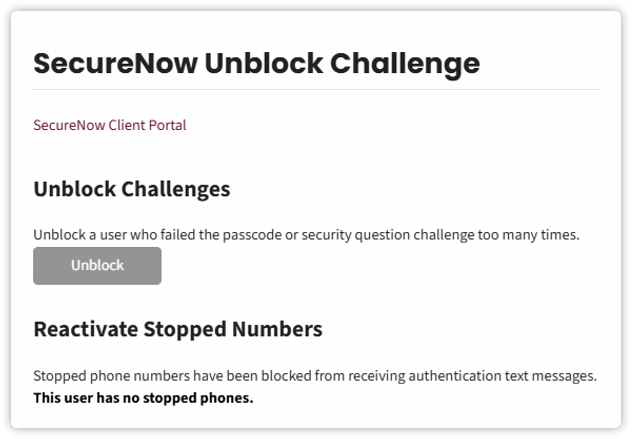
A customer who has failed the MFA too many times will be blocked. Search for the customer and select the username from the search results as shown above. The user details display.
From the SecureNowUnblock Challenge module, select the Unblock button to unblock the customer.
Handling Blocked Phone Numbers
On occasion, a customer inadvertently replies “Stop” to a verification challenge sent by text message. This blocks the number from receiving a One-Time PIN. The affected phone number can be reactivated by the customer or First National.
Self-Service Reactivation
Customers can reactivate their own stopped numbers through online banking via their desktop or the mobile app, by taking the following steps:
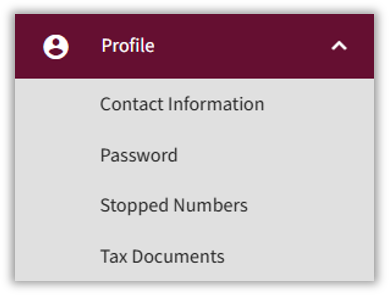
- Select their name to display the User Profile menu.
- Select Profile to open the dropdown menu.
- Select Blocked Numbers.
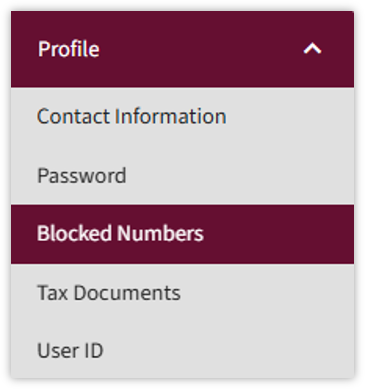
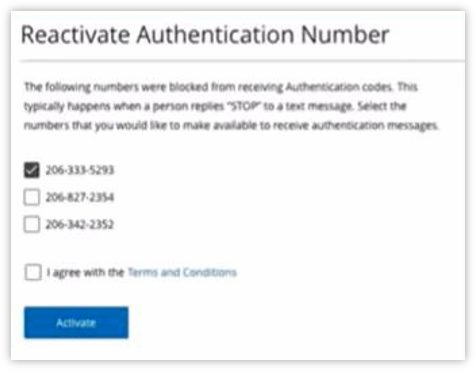
The Reactivate Authentication Number screen displays
- Select the phone number(s) to reactivate.
- Check the box to accept the Terms and Conditions.
- Select Activate.
First National Administrator Reactivation
Go to Advanced User Search in the Admin Portal. Search for the customer’s name in the Search field, then select the customer in the Search Results.
The User Details screen displays.
Scroll down to the Unblock Challenge section where blocked numbers are listed.
Select the Reactivate button and confirm.
