Accessing the Login Page
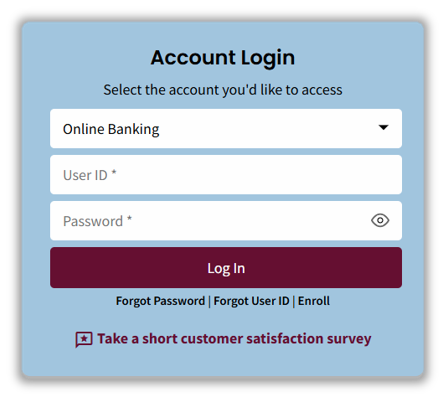
Here’s how to access the Login page: Navigate to FNBAlaska.com. The login box is on the top left of the page. You can also select the Login button in the top right of the menu bar.
Login Page Overview
Here’s an overview of the fields on the Login page.
- The first two fields are the User ID and Password fields.
- If you have locked yourself out of the site, you can unlock by selecting the Forgot Password link. When prompted, you will complete the necessary fields on the Forgot Password page and select the Submit button. A One-Time PIN security challenge is sent via text, a phone call or email.
- The Forgot User ID allows you to change your User ID. You will need to complete the information in the required fields and then select the submit button. Once information is submitted, a pop-up confirmation will appear stating that the User ID recovery email has been sent.
- The Enroll link allows you to register online . When selected, the Registration page opens. You will enter the information and after validation by the core system, you will receive a One-Time PIN verification challenge. Once the PIN is verified, you can set up your credentials, accept the terms and conditions, and log into the system.
- The Sign in Problems FAQs displays the associated page that you can use to troubleshoot issues before calling the bank.
System Login
How to log in to the system:
- Navigate to the Configure Digital Business or Personal portal.
If you enter an incorrect User ID and Password, you will be directed back to the login page and an error message display. The error message is general so if someone tries to gain unauthorized access, they don’t know what piece of information isn’t correct.

If you log in correctly, the next stage is to assess if an identity verification challenge is required.
Once authentication is complete, the login defense process in SecureNow assesses the information it has about logging into the system based on several criteria such as IP address, device information, country, where the attempt is being made from, etc.
A decision is sent back to Configure Digital to trigger the One-Time PIN challenge or not. A challenge will not always happen.
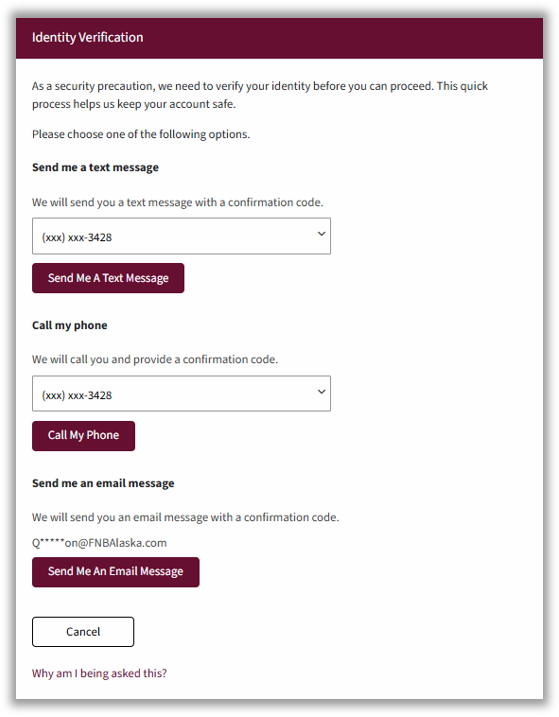
If the One-Time PIN challenge is required, you have three options:
- Received an email with the code sent to the email address on file.
- Receive a text message with the code sent to your phone.
- Receive a phone call where the code is provided by voice.
If you enter an incorrect PIN three times, you will be locked out of the system. You will be prompted to contact First National for assistance.
If you have typed STOP as a reply to the text you get from our multifactor authentication system, you will not receive text messages from SecureNow to that phone number. You will need to XXX to begin receiving messages again.
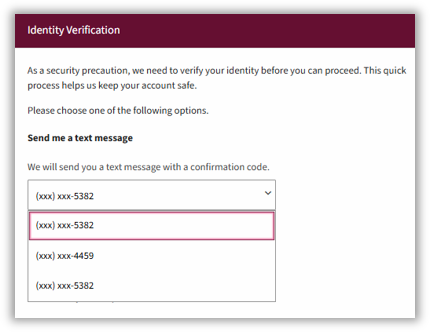
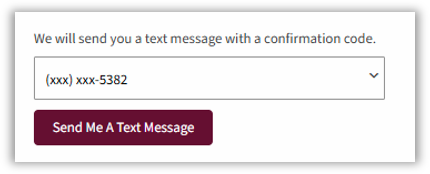
- Choose the SMS text message option, then choose the phone number and select the Send Me A Text message button.
The confirmation code screen display.
Enter the number in the Confirmation Code field and select Submit.
If the correct PIN is entered, the login process is complete.
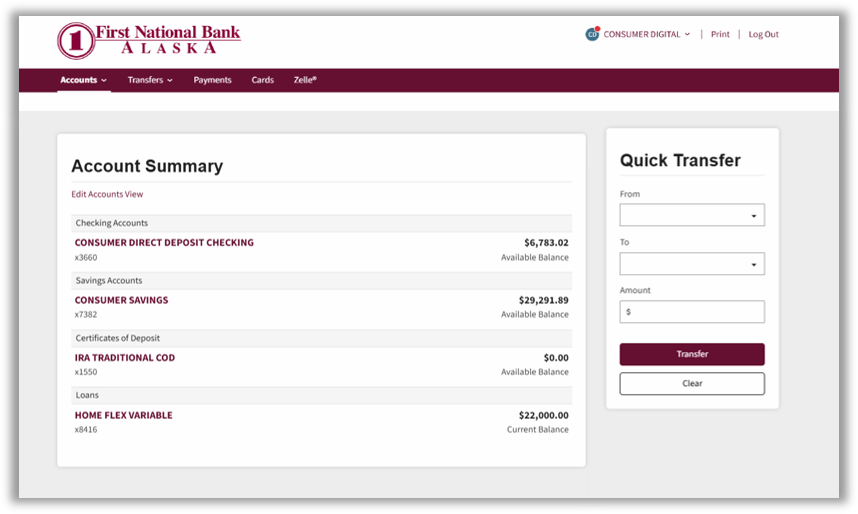
The Account Summary page will display.