Managing cards and protecting them against fraud is easier than ever. The Debit Card Controls is a tool built right into online banking. Here are some the benefits of Card Controls:

Location Based Controls
Restrict transactions to merchants located within a certain range of your location or geographic areas.
Recurring Payments
View a list of recurring payments and which merchants store card information.
Control Spending Limits
Set spending limits for general use or specify thresholds by merchant or transaction type — such as gas, groceries or retail stores.
Place Travel Notifications
Set up travel notifications for up to 30 days. You can place up to two travel plans per card. View, edit and delete your travel plans all through the online banking.
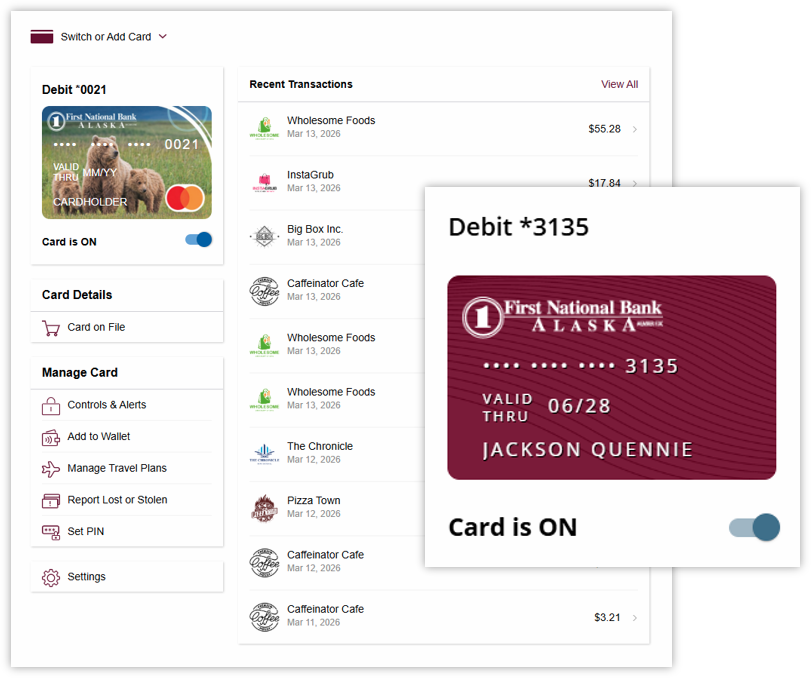
Lock/Unlock Your Card
When the card is active, transactions are allowed in accordance with your usage settings. This can be used to disable a lost or stolen card, prevent fraudulent activity or control spending.
Activate Card & Set PIN
Activate card & set up PIN and signature transaction alerts to stay informed of debit card usage and quickly detect unauthorized or fraudulent activity.
Card Lock/Unlock
Toggle the blue switch to turn the card ON/ OFF
Card Details
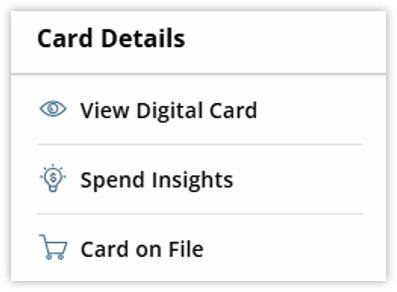
Card Details is where you can find important information about your debit card.
Digital Card
Digital Card allows you to view your debit card information such as card number, expiration date and security code.
Spend Insights
Spend Insights allows you to view spending. It will provide information on transactions, when and where it happened.
Card on File
Card on File shows the list of merchants who saved your card information for recurring payments and purchases.
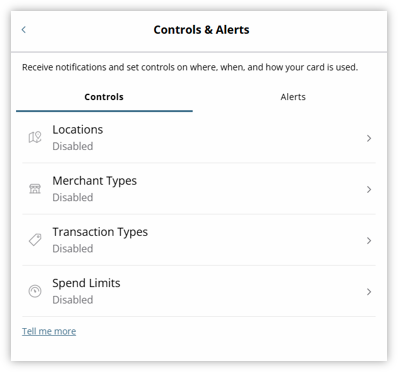
Controls & Alerts
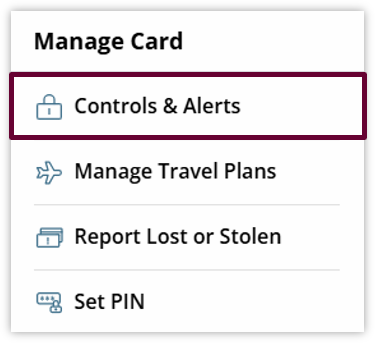
Click Controls & Alerts under the Manage Card menu for access.
Control & Alerts have the following option:
- Locations
- Merchants Types
- Transaction Types
- Spending Limits
Locations
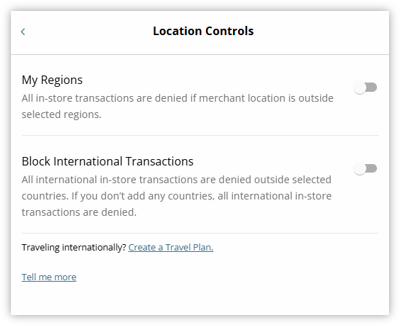
Select Locations to access Location Controls.
Under Location Controls, you can enable and disable the following features:
- My Regions – Allows you to define the geographic region where your card is expected to be used.
- After enabling My Regions, select the + icon to add one or more regions.
- Block International Transactions – Prevents card transactions from being processed outside the United States.
- If International transactions are blocked and you plan to travel internationally, create a Travel Plan to allow card usage during the trip. A travel plan provides temporary authorization for international card transactions while traveling. See Manage Travel Plans section of this learning guide for more details.
Merchant Types
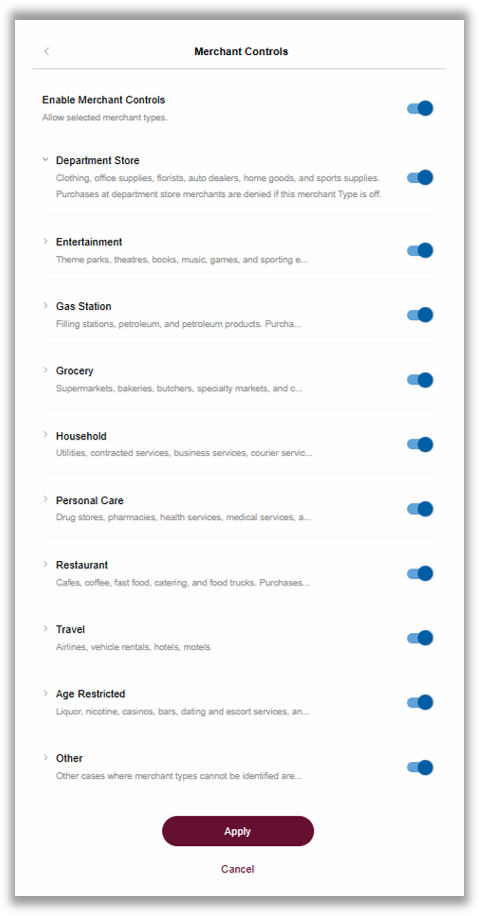
From Control & Alerts view, select Merchant Types. Merchant Controls will display.
Under Merchant Controls, toggle the blue switch to enable and disable merchant types. The merchant types are:
- Department Store
- Entertainment
- Gas Station
- Grocery
- Household
- Personal Care
- Restaurant
- Travel
- Age Restricted
- Other
Click Apply to confirm selected controls.
Transaction Types
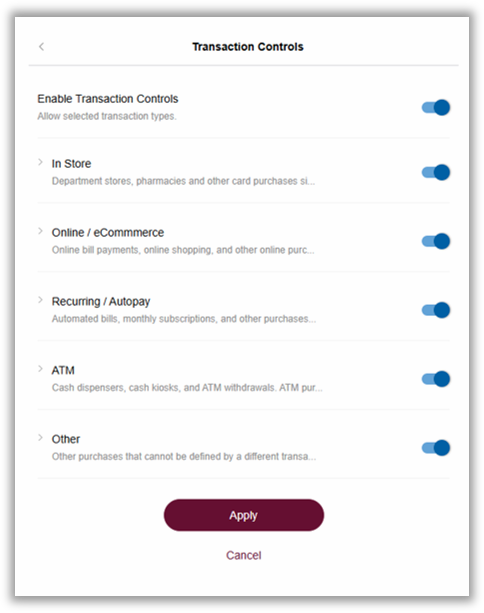
From Control & Alerts, click Transaction Types. Transaction Controls will display.
Under Transaction Controls, toggle the blue switch to enable and disable the following transaction controls:
- In Store
- Online
- Autopay/Recurring
- ATM
- Other
Click Apply to confirm approved transactions types
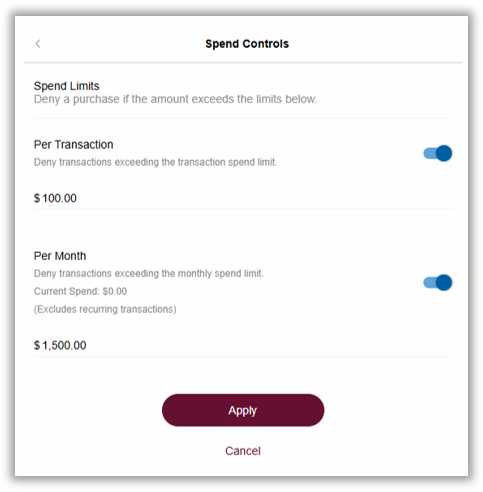
Spend Limits
From Control & Alerts, select Spend Limits. Spend Controls will display.
Under Spend Controls, toggle the blue switch to enable and disable spending limits per transaction.
Once enabled, enter the amount you swish to set for your limit.
Click Apply to confirm amount.
Manage Travel Plans
To create a travel notification, click Manage Travel Plans under the Manage Card menu. Manage Travel Plans will display.
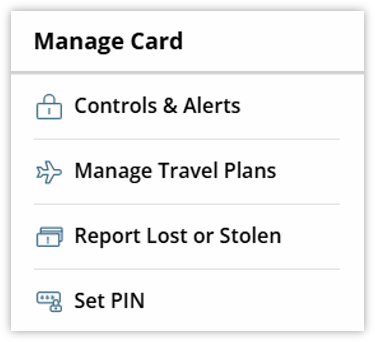
Click Add Travel Plan.
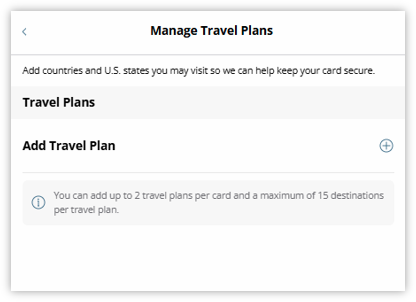
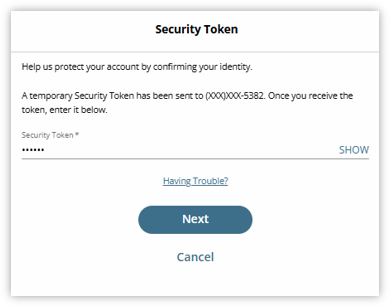
Security Token view will display.
This will prompt you to verify how you would like to receive the verification code.
Click Next to confirm delivery method.
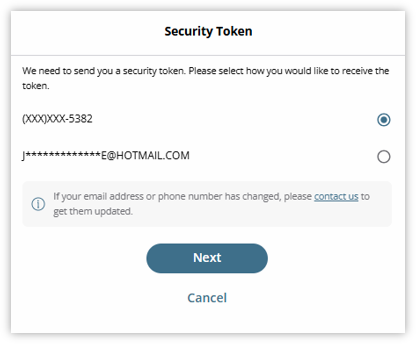

For security purposes, some actions may require Multifactor Authentication (MFA). If prompted, complete the authentication process before continuing.
Enter the verification code under Security Token. Then, click Next to confirm.
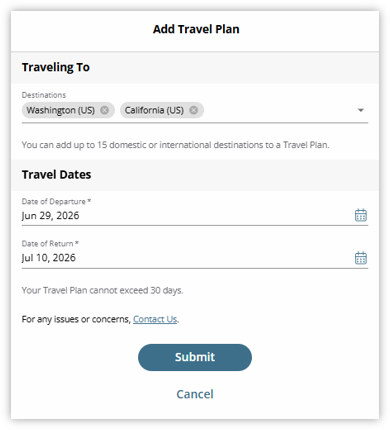
Under Traveling To, click the Destinations dropdown and check all travel destinations.
Under Travel Dates, click the calendar icon under Date of Departure to select the departure date.
Then, click the calendar icon under Date of Return to enter the date of return date.
Click Submit to confirm travel plans.
Reporting Lost or Stolen Card
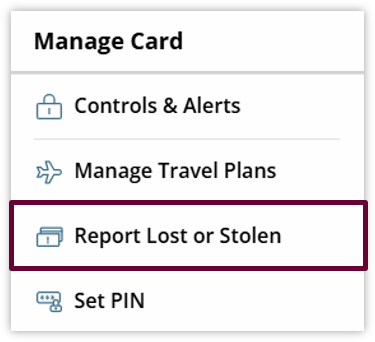
To report a lost or stolen card, click Report Lost or Stolen under the Manage Card menu. Report Lost or Stolen page will display.
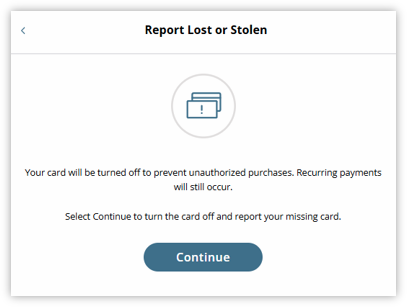
The Report Lost or Stolen page will prompt you to turn off your card.
Click Continue to turn off the card.
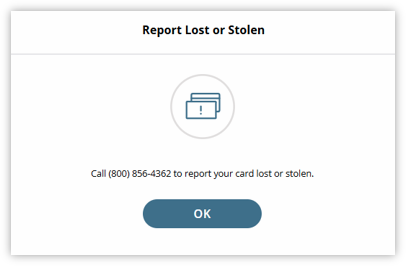
Once the card has been turned off, a message will display encouraging you to call the Contact Center to report a lost or stolen card.
Set Pin
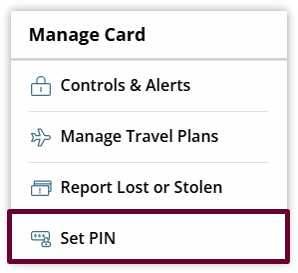
To set a PIN number, click the Set PIN link under the Manage Card menu.
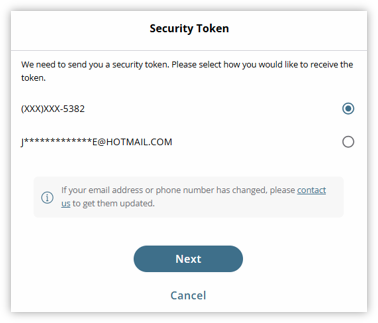
Security Token view will display.
This will prompt you to verify how you would like to receive the verification code.
Click Next to confirm delivery method.
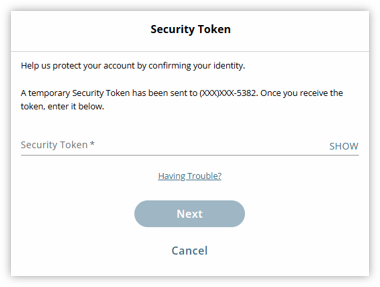
Enter the verification code under Security Token. Then, click Next to confirm.
Enter the desired PIN number in the Enter New PIN and Confirm New PIN field.
Click Submit to confirm.
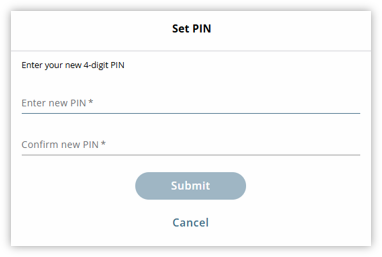
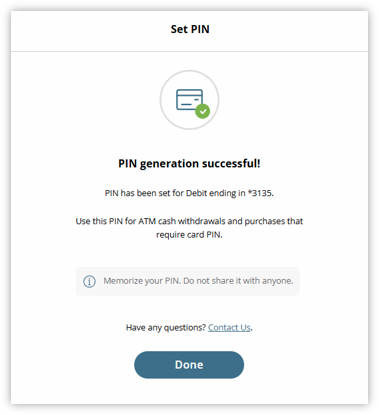
A confirmation will display that the PIN number has been set.