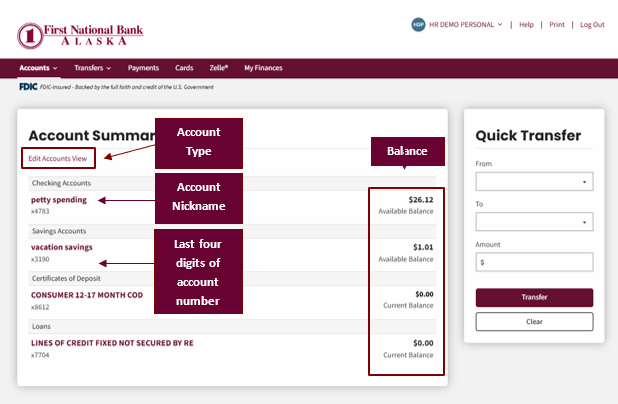
The Account Summary page is the first page you will access when logging in to online banking. The accounts are grouped as checking, savings, certificates and loans.
Account Summary Overview After logging in to your account, the Account Summary page displays basic information about each account, including the account nickname. This can be a user-defined nickname or the product name in Premier.
- The balance of the account(s) is visible in this view. The balance shown for checking, savings, and certificates of deposit is the available balance. The balance shown for loans is the current balance.
- The last four digits of the account number are also visible in this view.
To navigate within the Account view:
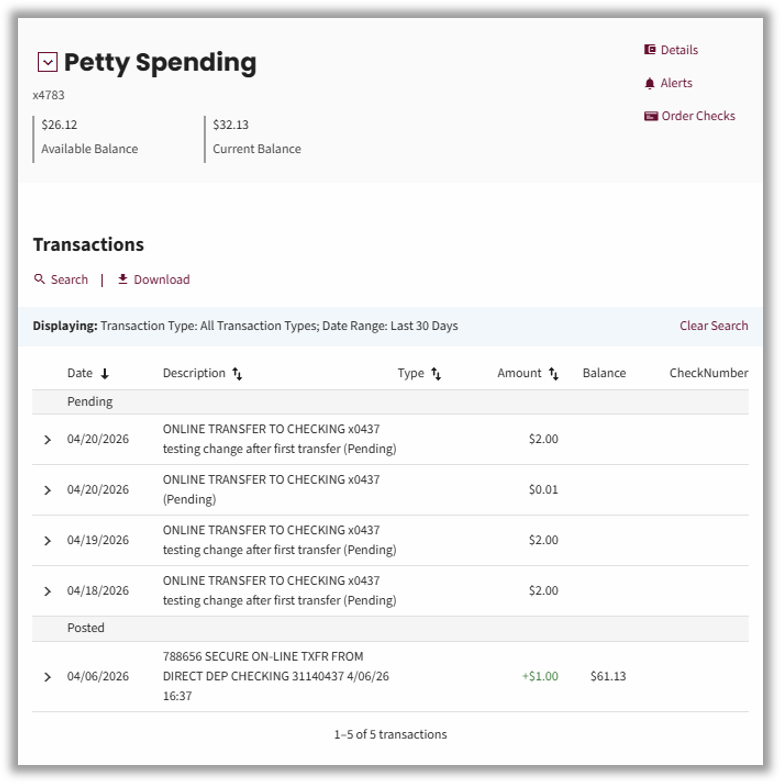
- Select the account nickname of an account to display the Account History page. The Account History page displays up to 30 days of transaction history, including posted and pending transactions. All the information displayed on this page is retrieved from Premier.
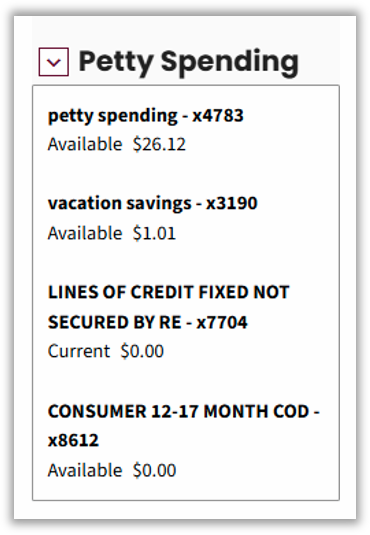
- Select the down arrow at the top left* next to the account name to view a list of all the accounts you have access to.
*Visible only if you have multiple accounts
Accounts displayed are based on authority.
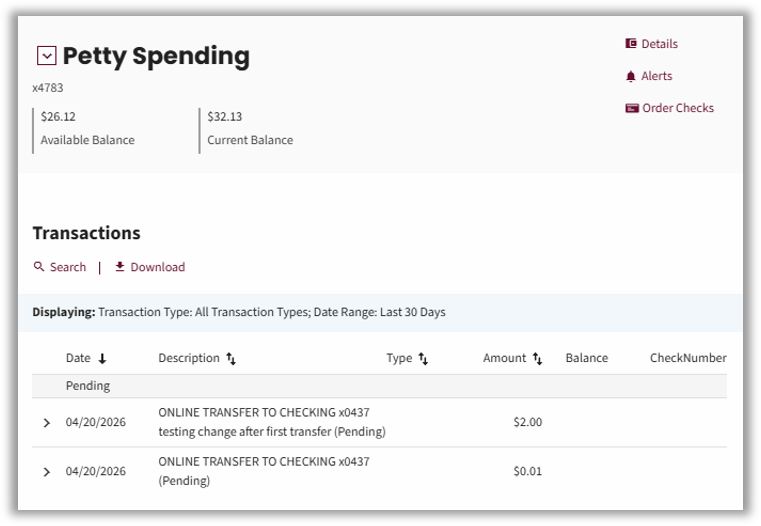
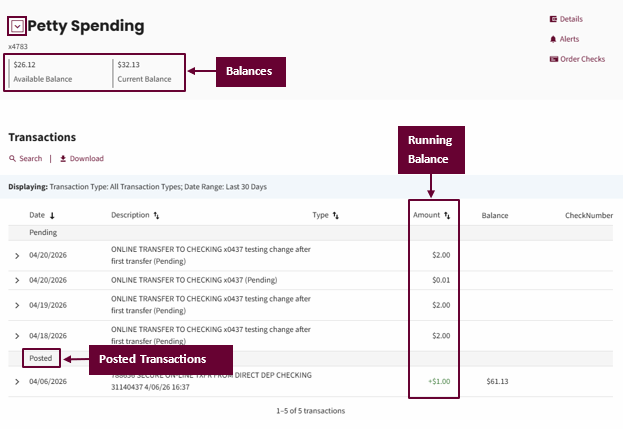
- At the top of the Account History page, the available and current balances display. If there are pending transactions, the available and current balances will be different.
- Pending transactions display at the top of the transaction list in the Pending section and include pending debit card transactions, check withdrawals and deposits.
- Posted transactions display below the Pending transaction section.
- You may see the Running Balance column to the right.
3. Select the Search link under Transactions to view the available search options.
There are three Transaction Types:
- Check
- Deposit
- Withdrawal
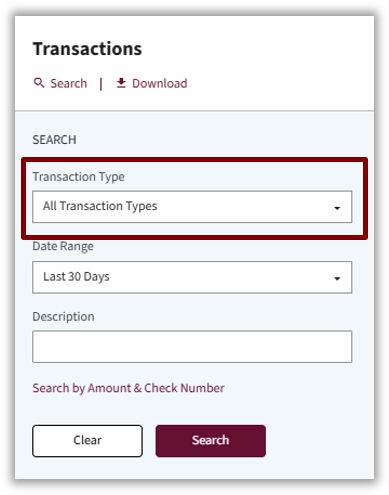
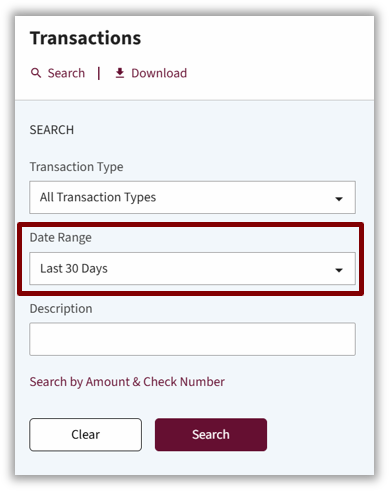
The date range options include predefined ranges of 30, 60, 90 and 120 days.
You can also select the custom range to define the start and end date for the search.
You can access a maximum of 2 years of transactions history.
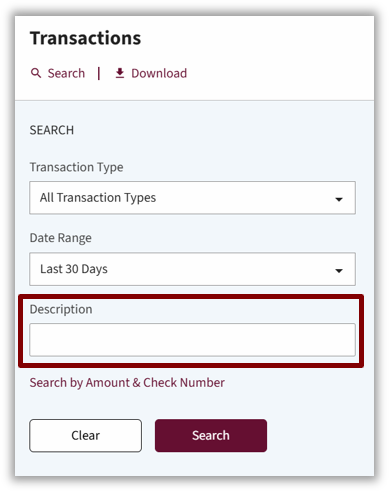
You can also search by the description of the transaction
The search will match any word within the description entered (for example, Walmart).
The more information entered, the more accurate the search will be.
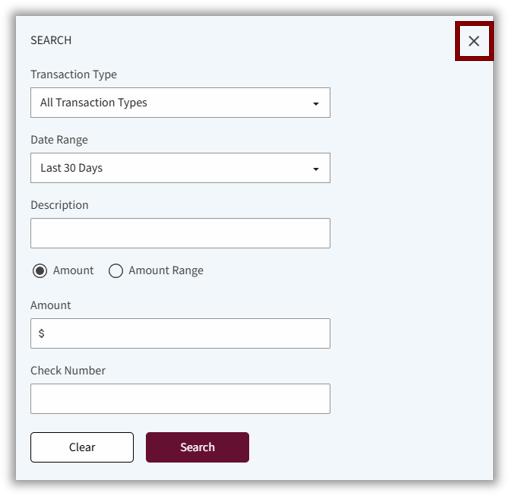
Select the Search by Amount & Check Number link to search by amount, range or check number.

Select the Search button to initiate the search after entering the desired search criteria.
Select the X in the upper right corner of the Search view to exit.
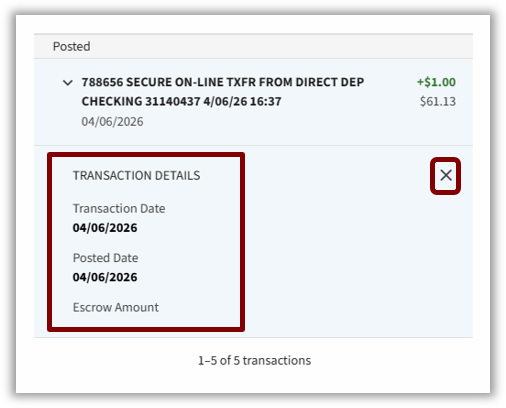
4. Select the arrow to the left of the transaction date to view transaction details.
5. View transaction details, such as transaction date, posted date, and type.
If images are available, links will display in the Details view to allow you to view the items.
6. Select the X in the upper right corner of the Transaction Details view to exit.
Links to other functions display in the top upper right of the page.
- The Details link opens the account details pop up. Account details include the full account number, date the account was opened, the interest rate and year-to-date amount if applicable, and the last deposit date and amount. Loan accounts display payment information such as due date and amount and payoff information. Maturity accounts include the maturity date.
- You can also change the nickname of an account under the Details view by selecting the Change Account Nickname hyperlink.
- The Order Checks link logs you in to Deluxe check ordering system where you can reorder checks.