Accessing the Forgot Password Page
To access the Forgot Password process:
- Select the Forgot Password link located on the online banking Account Login Screen.
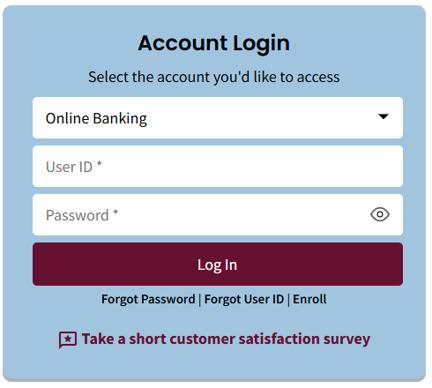
Request a new password
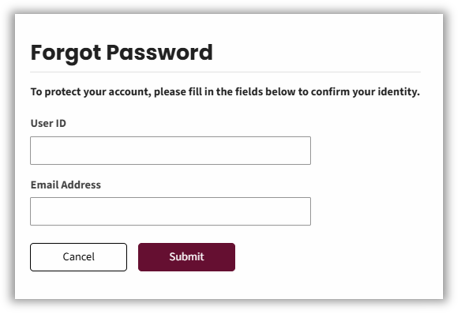
After selecting the Forgot Password link, you will be directed to a page that contains several fields to complete. This allows the system to match data entered to the data on the Premier to confirm identification.
- Complete the required fields:
- User ID
- Email Address
- Select Submit.
Unsuccessful Sign-on
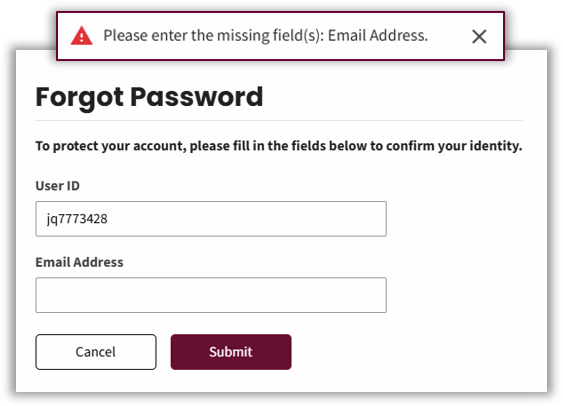
When incorrect data is entered the system will return an error message.

Required Fields Missing
If required fields are missing, the error message may request data for the specific missing field.
Successful Sign-on
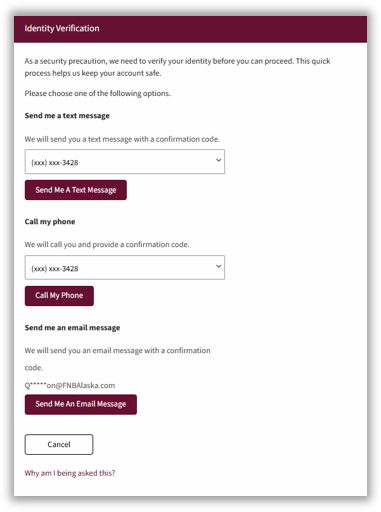
When the three data fields are completed and verified correctly you will be presented with the second level of security, the SecureNow One-Time PIN challenge.
- The SecureNow One-Time PIN Challenge displays
- Choose how you want to receive your PIN:
- Text Message
- Phone Call
You must have access to the phone number selected from the dropdown menu.
If you are unable to access any of the listed phone numbers and email, select Cancel to return to the Online Banking Login page and contact First National to update your contact information.
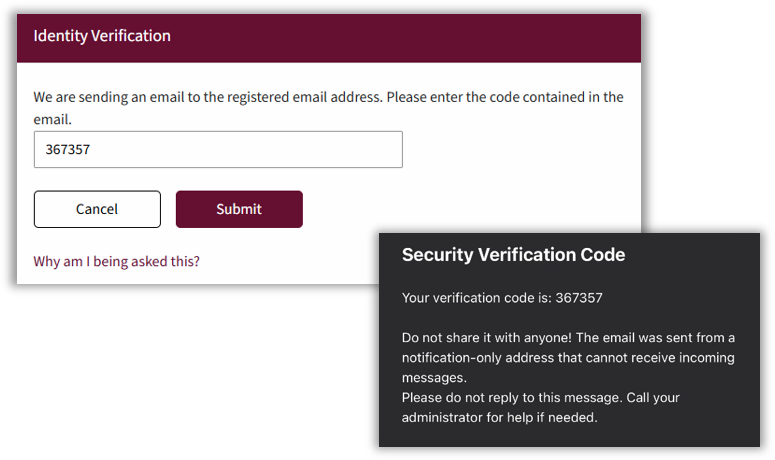
- Enter the PIN received by text, call or email in the Confirmation Code field of the Identity Verification page.
Select Submit.
Note: You should never give out your One-Time PIN. First National will NEVER ask for your account details.
Reset Password
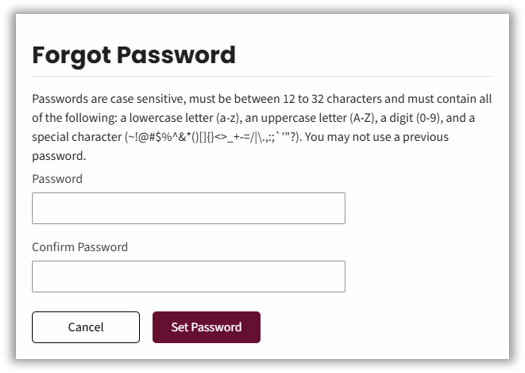
When the One-Time PIN is verified, you’ll be directed to the password reset screen.
- Follow the prompts to set a new password.
- The password must meet the requirements:
- 12 – 32 characters long
- At least one lower case letter
- At least one uppercase letter
- At least one number
- At least one special character from the following list: ~`@#$%^&*()_-+={[}]|\:l”‘<,>.?/ and space
- May not use a password previously used.
Confirm the password.
- Select Set Password.
- When the password has been reset successfully, the Account Summary page displays.